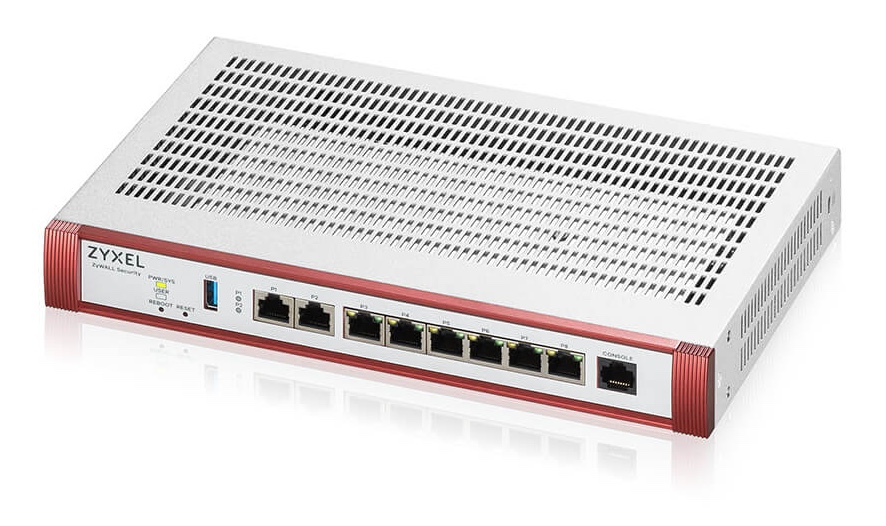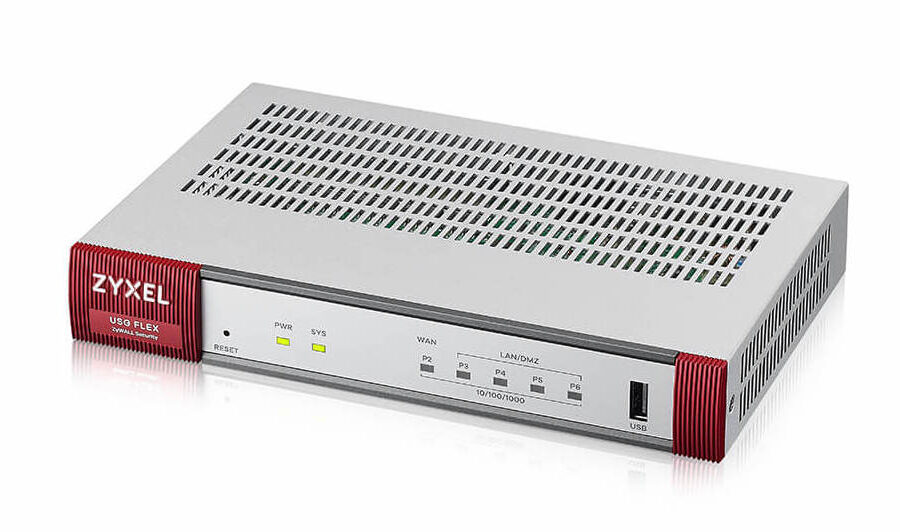




Need to connect to Zyxel ATP VPN? The Zyxel ATP (Advanced Threat Protection) series provides high-performance firewall security and sandboxing for modern enterprises. Because it runs on the ZLD firmware, it offers robust IKEv2 IPsec VPN support, allowing Mac and iOS users to establish secure, encrypted tunnels to the corporate network with ease.
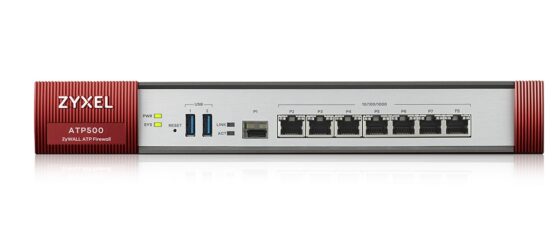
Configure VPN for Zyxel ATP 500
Compatibility: Supported ATP Models
In this guide, we show you how to use the Zyxel Connection Wizard to set up IKEv2 VPN on your ATP firewall, and how to connect using VPN Tracker for Mac, iPhone, and iPad.
Note for ATP Users: The ATP series uses the same ZLD interface as the USG Flex series. The steps below are identical for popular models like the ATP100, ATP200, ATP500, and ATP800.
Zyxel ATP VPN: Supported Protocols
While the Zyxel ATP series still offers support for IKEv1, this protocol is now widely considered deprecated due to significant security vulnerabilities and slower connection speeds. To ensure the highest level of encryption and the best possible stability on modern macOS and iOS devices, this guide focuses exclusively on IKEv2 IPsec. Using IKEv2 provides a more secure, future-proof connection that meets current enterprise security standards.
Set up IKEv2 VPN for Zyxel ATP (Connection Wizard)
Using the built-in wizard is the fastest way to provision your ATP for remote access. Log in to your ATP's web interface and click the magic wand icon in the upper toolbar:

Access the Quick Setup Wizard
1. Choose Scenario: Select Remote Access VPN Setup
2. Select Protocol: Choose IKEv2 IPSec Client
3. Traffic Configuration: Check Split Tunnel for better performance. Select your Local LAN from the dropdown so VPN users can reach your internal resources
4. IP Address Pool: Choose Custom and enter a network range for your VPN clients that is different from your local LAN range
5. Add VPN Users: Create new user accounts or select existing users to grant them VPN access
Now, Review your settings. Make sure to note your Pre-Shared Key (PSK), as you will need it for the client setup in VPN Tracker
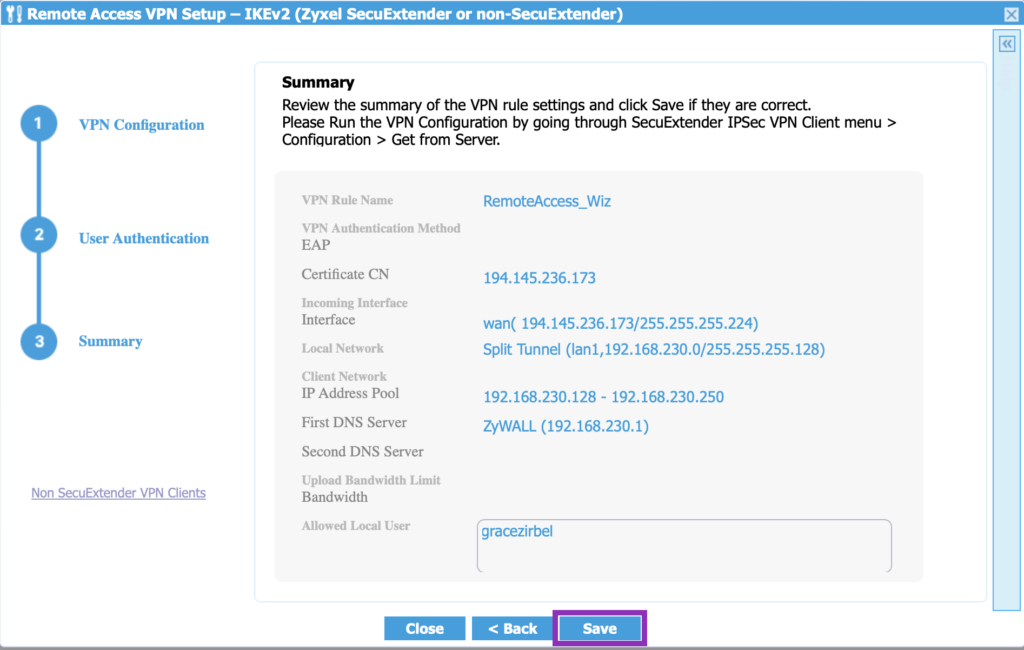
Save your ATP VPN configuration
Connect to Zyxel ATP VPN on Mac & iOS
VPN Tracker is the best VPN client for the Zyxel ATP series. It handles the IKEv2 negotiation perfectly and supports specialized features like TeamCloud and split tunneling management.
How to get connected:
- Open the VPN Tracker Connection Creator for Zyxel.
- Select Zyxel ATP Series > IKEv2
- Enter your firewall's WAN IP or Hostname
- Input your Pre-Shared Key and User credentials
- Save the connection in your account to access your Zyxel ATP VPN on Mac and iOS in VPN Tracker
Need Help Connecting to Your Zyxel ATP VPN? We Can Assist!
If you are short on time, need one-on-one setup assistance, or have specific questions about your Zyxel ATP configuration, our VPN consulting service is available to provide expert guidance.
Our professionals can assist with:
- Providing personalized, step-by-step guidance for your specific ATP model and network environment
- Auditing your current VPN configuration to ensure maximum security and efficiency
- Optimizing Phase 1 and Phase 2 settings for reliable performance on Mac and iOS
- Managing complex multi-user rollouts to get your entire team connected with minimal downtime
We make the transition to secure remote access smooth and fast, providing the expert advice you need to get the most out of your Zyxel ATP hardware.
Technical Note: Zyxel ATP and USG Flex series both utilize the ZLD operating system. The visual interface and setup steps shown in the screenshots above are identical across both device families.