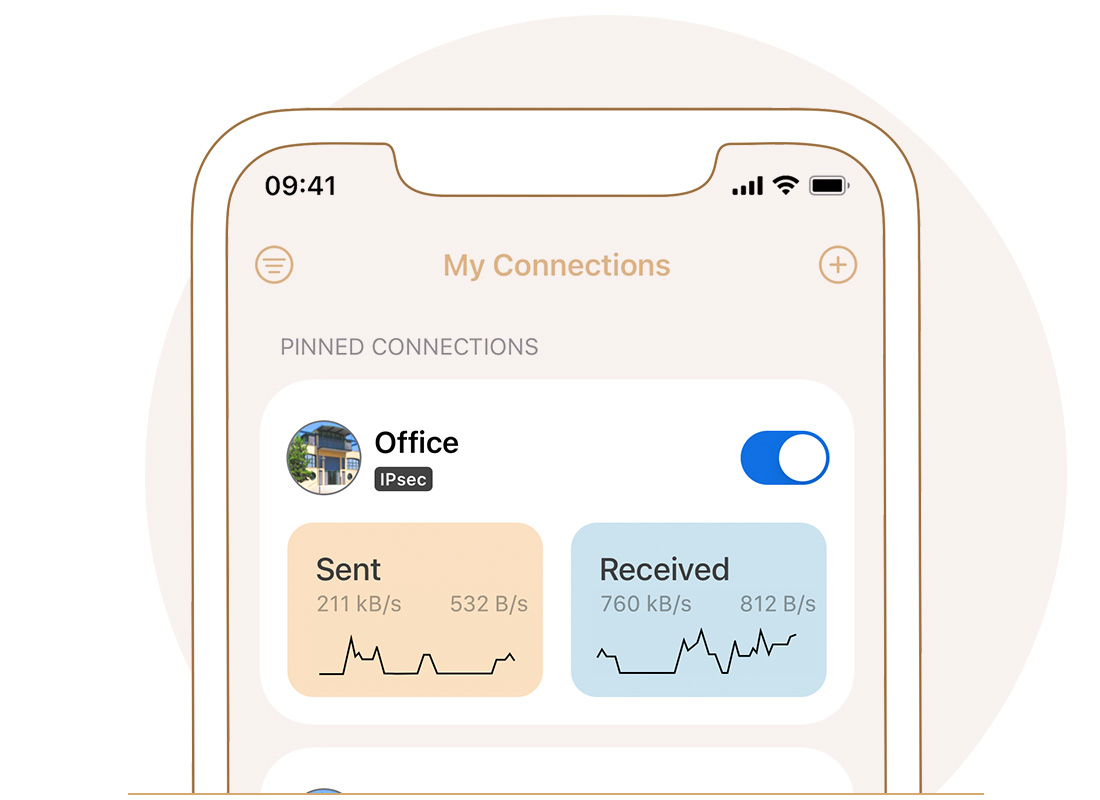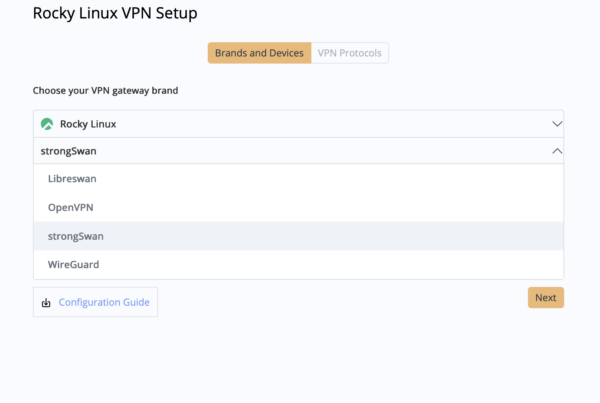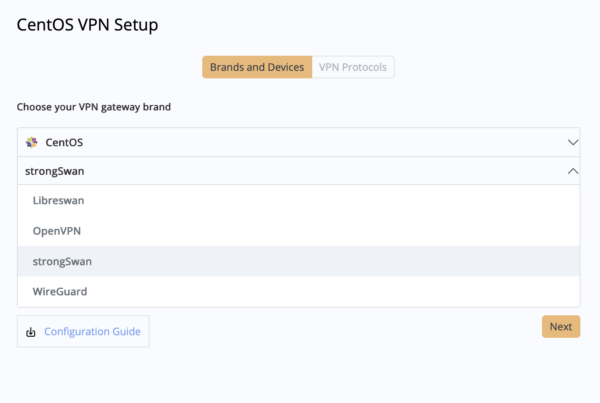




This guide will walk you through setting up a secure VPN server on your UGREEN NAS using OpenVPN and WireGuard®, and how to seamlessly connect from your Mac, iPhone, or iPad using VPN Tracker, the market leader for professional VPN on Apple devices.
Supported UGREEN NAS Devices
This guide applies to all UGREEN NASync models running the UGOS Pro operating system. The following models are officially supported for high-speed VPN throughput with VPN Tracker:
- DXP8800 Plus (Intel Core i5, 2x 10GbE)
- DXP6800 Pro (Intel Core i5, 2x 10GbE)
- DXP480T Plus (All-Flash, Intel i5, 1x 10GbE)
- DXP4800 Plus (Intel Pentium Gold, 10GbE + 2.5GbE)
- DXP2800 (Intel N100, 1x 2.5GbE)
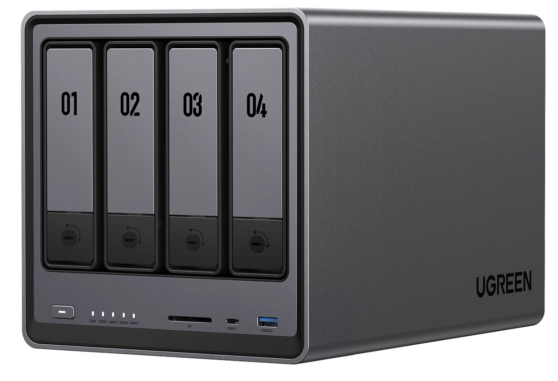
Securely connect to your UGREEN NAS DXP4800 Plus in VPN Tracker
UGREEN NAS Supported VPN Protocols
UGREEN's UGOS Pro natively supports the two leading modern VPN protocols. VPN Tracker provides a customized profile for both, ensuring compatibility and peak performance.
OpenVPN
Status: Broadly Compatible, Standard
Suitability: Best for legacy network environments or when troubleshooting connectivity issues.
WireGuard®
Status: Modern, High-Performance
Suitability: Best for almost all scenarios. Offers significantly higher speeds and lower latency, ideal for UGREEN’s powerful hardware.
Our Recommendation: Use WireGuard. Due to UGREEN’s high-performance Intel CPUs, WireGuard delivers up to 3x the throughput of OpenVPN, maximizing your network performance (up to 10GbE).
OpenVPN Setup on UGREEN NAS (UGOS Pro)
Setting up an OpenVPN server on your UGREEN NAS requires just a few steps in the Control Panel.
Brief Overview:
- Log in to your UGOS Pro web interface.
- Navigate to Control Panel > Network Services > VPN Server.
- Under the OpenVPN tab, enable the server.
- Configure your settings (port, protocol, DNS) or keep the defaults.
- Click Export Configuration. This will download an .ovpn configuration file to your computer.
Connect to OpenVPN in VPN Tracker
Once you have exported your OpenVPN configuration file from the UGREEN NAS, connecting is effortless.
Launch the Connection Creator for UGREEN OpenVPN:
Step-by-Step Connection:
- Click the button above to launch the customized Connection Creator on my.vpntracker.com.
- When prompted, drag and drop the .ovpn configuration file you exported from your UGREEN NAS.
- Give your connection a name and enter your UGREEN VPN user credentials.
- Click Save to My Connections.
- Open VPN Tracker on your Mac or iOS device, click the new connection, and toggle the switch to connect!
WireGuard Setup on UGREEN NAS (UGOS Pro)
WireGuard is the preferred choice for maximizing the 10GbE networking capabilities of your UGREEN NAS.
Brief Overview:
- Log in to your UGOS Pro web interface.
- Navigate to Control Panel > Network Services > VPN Server.
- Under the WireGuard tab, enable the server.
- Generate a new key pair if prompted, and configure the listening port and allowed IP ranges.
- Ensure you add a peer/client entry for your VPN Tracker device.
- Click Export Configuration. This will download a .conf (WireGuard configuration) file.
Connect to WireGuard in VPN Tracker
Leverage the extreme throughput of WireGuard by importing your UGREEN configuration file directly into VPN Tracker.
Launch the Connection Creator for UGREEN WireGuard:
Step-by-Step Connection:
- Click the button above to launch the customized Connection Creator on my.vpntracker.com.
- When prompted, drag and drop the .conf (or .conf.zip) configuration file you exported from your UGREEN NAS.
- VPN Tracker automatically parses all technical data (public key, endpoints, DNS).
- Click Save to My Connections.
- Open VPN Tracker on your Mac or iOS device, click the new connection, and toggle the switch to experience ultra-fast remote access!
Connect to Your UGREEN NAS VPN
Now you've set up your VPN, you're all ready to connect to your UGREEN NAS in VPN Tracker on Mac, iPhone and iPad.
VPN Tracker is the leading solution for remote access on Mac and iOS and is compatible with the most popular VPN compatible devices, including UGREEN, Netgate, Synology, QNAP, and more.
Your Benefits with VPN Tracker
- Connect to your office network and your smart home
- Use your own gateway
- Pre-configured profiles for 300+ VPN devices
- Configuration wizard for faster setup
- Available for Mac, iPhone, and iPad
- See all features