



Looking to set up a Synology OpenVPN server for remote access? Synology has long been a favourite for small to medium businesses, offering a versatile platform that often serves as the heart of a company's data infrastructure. Both the DiskStation and the Synology Router range offer support for a secure OpenVPN server, providing a straightforward way for staff to connect remotely.
This guide walks you through setting up a secure Synology OpenVPN server on modern Synology NAS systems (DSM 7+) and Synology Routers (RT-series), optimized for use with VPN Tracker on Mac, iPhone, and iPad.
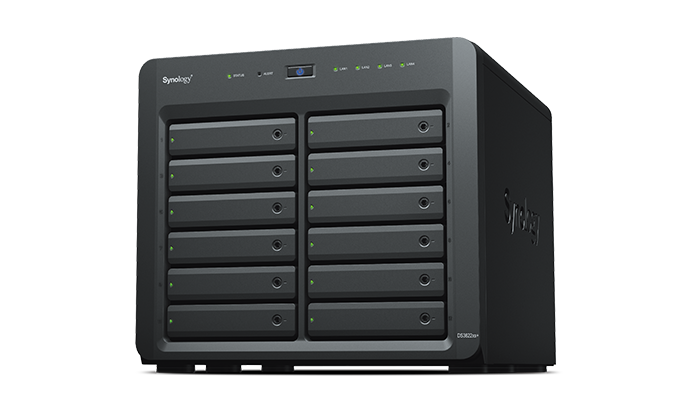
Synology NAS DiskStation
Menu
- Overview: Compatible Synology Devices
- Synology OpenVPN Server Configuration
- Connect to Synology OpenVPN Server on Mac & iOS
Overview: Compatible Synology Devices
VPN Tracker is compatible with the full range of Synology hardware supporting OpenVPN. Below is a breakdown of the most relevant devices for business remote access at the time of publishing:
| Device Category | Operating System | Popular Models |
|---|---|---|
| DiskStation (Desktop NAS) | DSM 7.x+ | DS923+, DS1522+, DS1621+, DS1821+ |
| RackStation (Rackmount NAS) | DSM 7.x+ | RS822+, RS1221+, RS2423+ |
| Synology Routers | SRM 1.3+ | RT6600ax, WRX560, RT2600ac |
| FlashStation / Enterprise | DSM 7.x+ | FS series, SA series |
Note: For the best performance on modern Apple Silicon (M-series) Macs, we recommend using hardware that supports AES-GCM encryption within the OpenVPN settings.
Synology OpenVPN Server Configuration
Step One: Install the VPN package
- For NAS Users: Open the Package Center and install the "VPN Server" package:
Tip: For Router Users (RT6600ax, WRX560), you'll need to install the "VPN Plus Server."
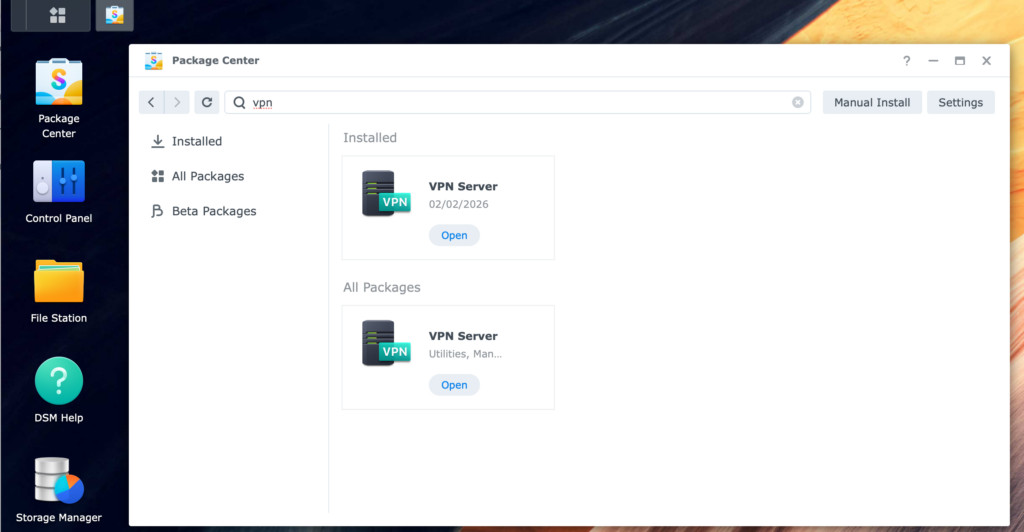
Installing the VPN Server package on a Synology NAS
Step Two: Enable and Secure your OpenVPN Server
- Open the VPN Server app and select the OpenVPN tab.
- Check the box Enable OpenVPN server.
- We recommend using AES-256-GCM encryption and SHA512 authentication for maximum performance on Apple Silicon Macs.
- Check Allow clients to access server's LAN to reach your entire local network.
- Click Apply and then select Export configuration.
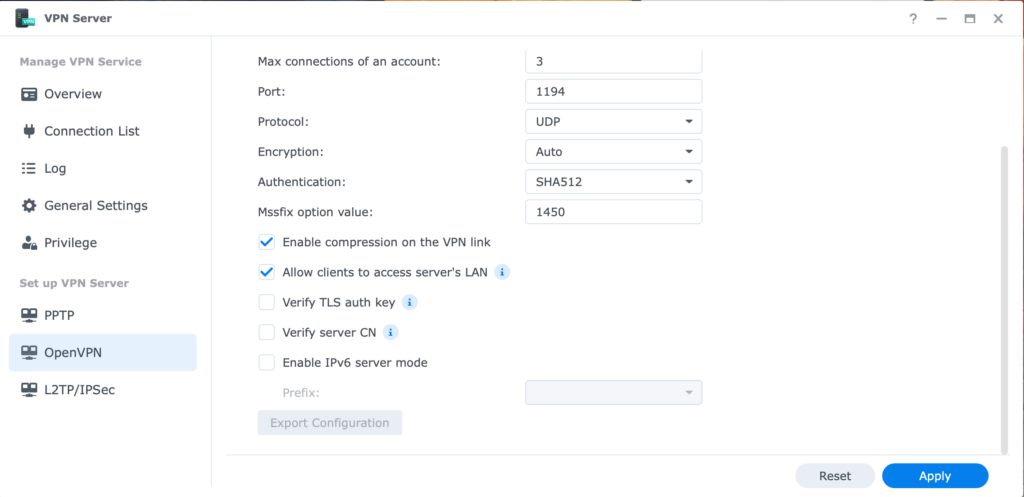
Synology OpenVPN Server setup
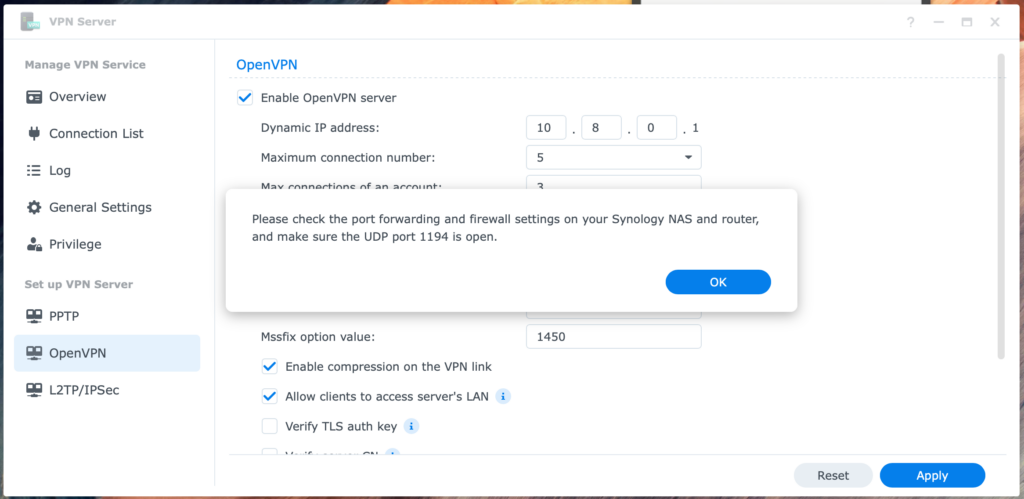
A note on Port Forwarding: After saving your settings, you’ll see a warning regarding port forwarding. To allow the connection to reach your NAS, you must log into your internet router and forward UDP port 1194 to your Synology's internal IP address.
Pro Tip: If you are still unable to connect, double-check that UDP 1194 is also allowed in the "Firewall" section of your Synology Control Panel.
Step Three: Check User Privileges (Crucial for DSM 7)
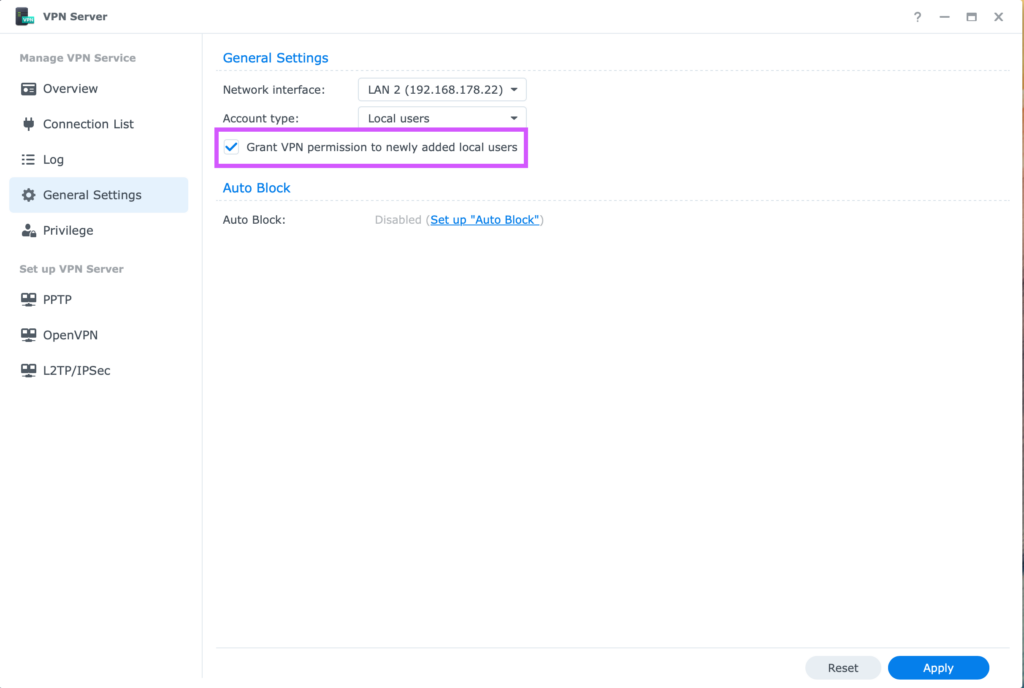
In the VPN Server app, go to the General Settings tab and ensure Grant VPN permission to newly added local users has been checked. (Usually, this is checked by default):
Next, go to the Privileges tab. Here you'll see the list of local users for the Synology device. Check your specific user account is granted OpenVPN access; otherwise, the connection will be blocked:
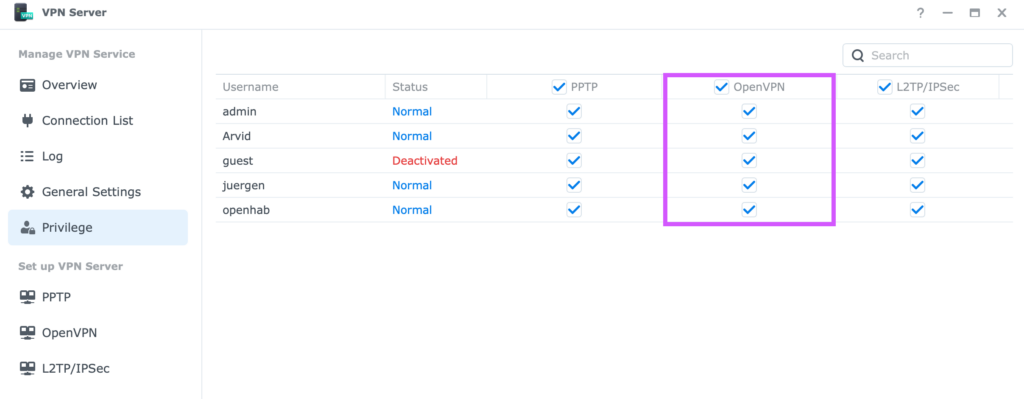
Check the OpenVPN privileges are active for the users who need to connect
Optional: Dynamic DNS
Finally, if your connection lacks a fixed IP, configure a Dynamic DNS service (e.g., name.synology.me) to provide a fixed hostname.
Connect to Synology OpenVPN Server on Mac, iPhone, iPad
VPN Tracker provides full support for Synology OpenVPN connections, giving you secure remote access to your Synology device on Mac and iOS.
-
- Open the Synology Connection Creator for VPN Tracker or, in the app, go to File > New Vendor Connection > Synology NAS (OpenVPN)
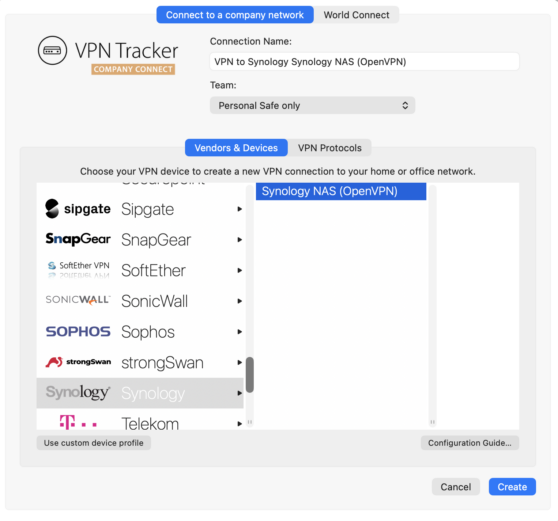
- Drag in your Synology .ovpn file:
- Open the Synology Connection Creator for VPN Tracker or, in the app, go to File > New Vendor Connection > Synology NAS (OpenVPN)
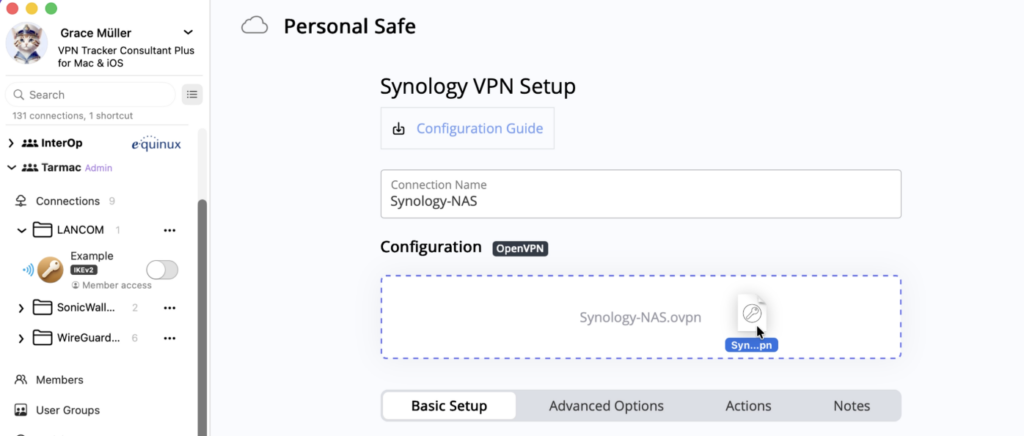
Drag and drop your Synology OpenVPN configuration file
- Under Basic Setup > Address, enter your router's public (WAN) IP address or DynDNS host name:
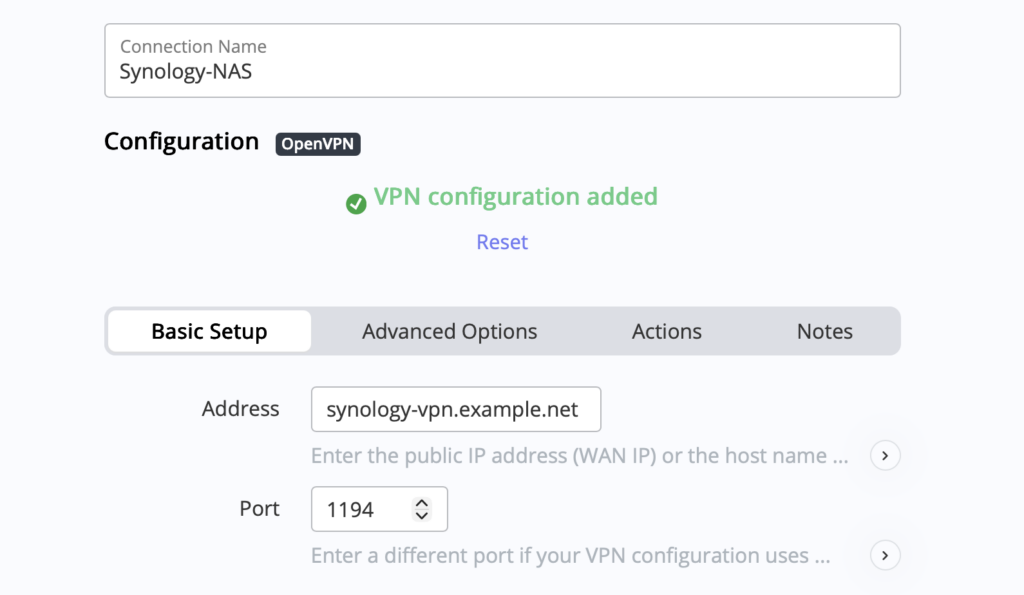
- Then, hit Save. VPN Tracker will automatically parse your unique configuration settings and save your connection to your Synology OpenVPN server in your account.
Your VPN Tracker benefits
- Secure remote access to your company network, home office, and Smart Home - all in one app
- Use your own VPN gateway
- Ready-made profiles for 300+ VPN devices
- Configuration wizard for a smooth and fast setup
- For Mac, iPhone, iPad
- Discover all features