



QNAP QuRouter WireGuard VPN lets you securely connect to your office or home network from a Mac, iPhone, or iPad with VPN Tracker. In this setup, the QNAP router runs the WireGuard VPN server and VPN Tracker is the client.
This guide walks you through enabling WireGuard in QuRouter, exporting the user-specific .conf file, uploading it to VPN Tracker, and testing remote access. You can also open the QNAP QuRouter WireGuard Connection Creator to get started.
How the QNAP QuRouter WireGuard VPN setup works
Your QuRouter device accepts incoming WireGuard connections from the internet. VPN Tracker uses a unique client key and tunnel address to authenticate, then routes traffic to the remote network behind the QNAP router.
For reliable access, the router must be reachable from outside your local network. A public IP address or DDNS hostname is ideal. If QuRouter sits behind another modem or router, that upstream device must forward the configured WireGuard UDP port to QuRouter.
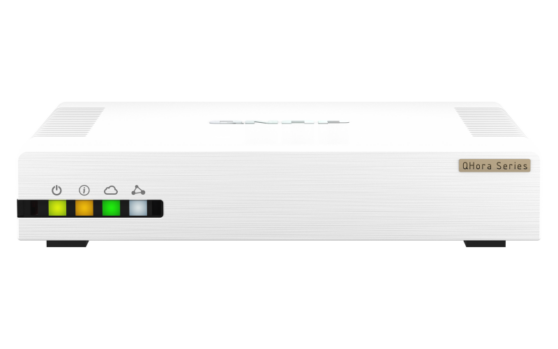
Connect to QHora 321 via WireGuard VPN
Compatible QNAP QuRouter devices
This guide applies to QNAP routers running QuRouter with WireGuard server support:
- QNAP QHora-301W
- QNAP QHora-321
- QNAP QHora-322
- QNAP QMiro-201W
- QNAP QMiroPlus-201W
Menu names can vary slightly between QuRouter releases, but the required WireGuard settings are the same.
Before you start
You will need:
- Administrator access to the QuRouter web interface
- A current QuRouter firmware version
- A public IP address or DDNS hostname for the VPN endpoint
- The local network subnet you want to reach, for example 192.168.100.0/24
- VPN Tracker on your Mac, iPhone, or iPad, or the QNAP QuRouter Connection Creator
Check internet reachability first: If your ISP uses carrier-grade NAT (CGNAT), unsolicited incoming WireGuard connections normally cannot reach your router. Ask your ISP for a public address or another inbound-access option. If there is an upstream NAT router, create a UDP port-forward for the WireGuard listening port.
Avoid overlapping networks. The QuRouter LAN, the WireGuard client address pool, and the network from which you connect should use different IP ranges.
WireGuard values you need
QuRouter writes the following values into the exported WireGuard configuration file. They are useful when reviewing an import or configuring the connection manually as a fallback:
| Value | Example | Where it comes from |
|---|---|---|
| VPN endpoint | vpn.example.com | Your public IP or DDNS hostname |
| UDP port | 51820 | QuRouter WireGuard server setting |
| Server public key | Generated by QuRouter | WireGuard server settings |
| Client private key | Generated for the QVPN user | QVPN user record; keep it secret |
| Client tunnel address | 198.18.7.2/32 | Address assigned to the QVPN user |
| Remote network | 192.168.100.0/24 | Your QuRouter LAN subnet |
| DNS server | Optional internal or public DNS | Your network design |
The addresses above are examples. Use the values from your own QuRouter configuration.
1. Configure the WireGuard server in QuRouter
- Sign in to the QuRouter administration interface.
- Open QVPN Servers and select QVPN Settings.
- Find WireGuard and open its edit action.
- Enable the WireGuard server.
- Choose the client IP pool. QNAP uses 198.18.7.1/24 as the default in current documentation. Change it if that range overlaps another network you use.
- Set the listening UDP port. The default is 51820; a different port is fine as long as VPN Tracker and any upstream port-forward use the same value.
- Generate the server key pair and note the server public key.
- Set DNS and persistent keepalive values if required by your network.
- Select Apply.
If QuRouter is behind another router, forward the selected UDP port to the QuRouter WAN address. Do not expose the QuRouter administration interface to the internet just to make VPN work.
2. Create a WireGuard user and download the .conf file
- In QuRouter, go to QVPN Servers > QVPN User Management > QVPN User Settings.
- In the WireGuard section, select Add.
- Enter a descriptive profile name, such as Anna-MacBook.
- Select Generate Keypairs to create the private and public client keys.
- Select Add. QuRouter creates and enables the WireGuard user profile.
- Find the new user and, under Actions, select the download action.
- In the Download WireGuard Configuration window, select the WAN port that remote clients will use.
- Select Download. QuRouter saves the user-specific WireGuard .conf file to your device.
Create a separate QVPN user and key pair for every device. Reusing the same WireGuard identity on two active devices can make routing unstable and makes it harder to revoke access safely.
Protect the exported .conf file: It contains the client private key. Treat it like a password, transfer it directly to the intended device, never publish it, and do not attach it to support tickets.
3. Upload the WireGuard .conf file to VPN Tracker
- Open the QNAP QuRouter WireGuard Connection Creator.
- Upload the .conf file downloaded from QuRouter. On a Mac, you can alternatively drag the file onto VPN Tracker or choose File > New from File > WireGuard Connection.
- Review the imported connection name, endpoint, UDP port, keys, tunnel address, DNS, and allowed networks.
- Confirm that the remote network includes the LAN behind QuRouter, for example 192.168.100.0/24. Add it if the exported profile does not already contain the required route.
- Save the connection securely in VPN Tracker.
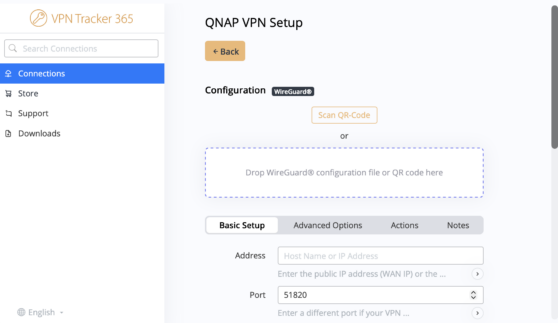
VPN Tracker Connection Creator for WireGuard
The exported file is the recommended setup method because it transfers the WireGuard keys and core tunnel settings without manual copying. Create and download a separate configuration for each Mac, iPhone, or iPad.
Manual configuration fallback
If a configuration file cannot be used, create a manual WireGuard connection and enter the endpoint, UDP port, server public key, client private key, client tunnel address, DNS server, and remote network shown in QuRouter. For a full-tunnel connection, use 0.0.0.0/0 as the IPv4 remote network only when that is your intended policy and QuRouter is configured to forward all traffic.
4. Test the connection
- Disconnect the client device from the QNAP router's local Wi-Fi. Use cellular data or another external network.
- Start the connection in VPN Tracker.
- Open an internal IP address, file server, or other permitted resource behind QuRouter.
- If you configured internal DNS, test an internal hostname as well.
- For a full-tunnel setup, check your public IP address and confirm it matches the remote internet connection.
Troubleshooting QNAP QuRouter WireGuard VPN
No WireGuard handshake
- Confirm the public IP or DDNS hostname is current.
- Check that the UDP port in VPN Tracker matches QuRouter.
- Verify any upstream router forwards that UDP port to QuRouter.
- Check whether your ISP uses CGNAT.
- Recheck the server public key and client private key.
VPN connects, but the remote LAN is unreachable
- Confirm the correct LAN subnet is entered as the remote network.
- Check for overlapping local and remote IP ranges.
- Review QuRouter firewall and access rules for the target resource.
- Try the resource's IP address to distinguish routing from DNS issues.
One device works, another disconnects
Create a unique QuRouter WireGuard user and key pair for each Mac, iPhone, or iPad. Do not run the same client profile simultaneously on several devices.
The connection stopped working after a configuration change
If you regenerated keys, changed the listening port, modified the client pool, or replaced the router, download a fresh .conf file from QuRouter and import it again. A stale configuration cannot authenticate with newly generated keys.
Using a QNAP NAS instead?
QuRouter and QNAP NAS devices use different VPN administration interfaces. If your VPN server runs directly on a QNAP NAS with QVPN Service, follow our separate guide: How to configure a VPN for QNAP NAS.
Connect to your QNAP QuRouter with VPN Tracker
Create the matching WireGuard connection, enter your QuRouter values, and securely access your remote network from Mac, iPhone, or iPad.