



UniFi OpenVPN connection stopped working after a server update? If you use VPN Tracker, the most likely cause is a mismatch between the updated UniFi server’s compression setting and the LZO setting stored in your existing connection.
The good news: you usually do not need to rebuild your VPN from scratch. You can either turn off compression in the existing connection or export and import a fresh .ovpn profile from UniFi.
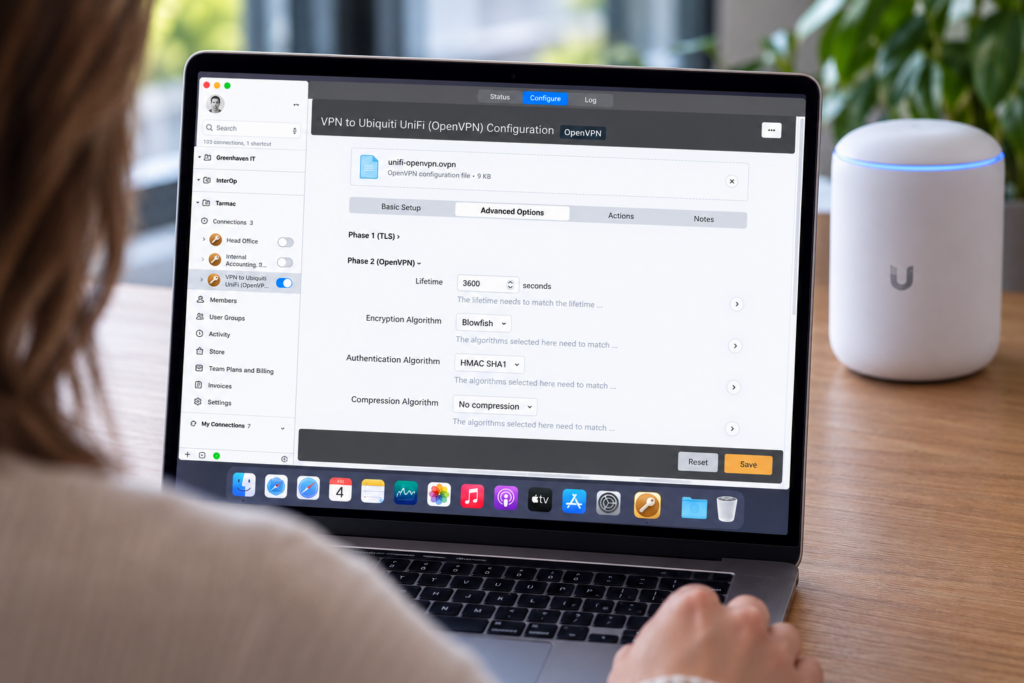
Edit your UniFi OpenVPN connection in VPN Tracker to restore connectivity
Quick fix
Edit the affected connection, open Advanced Options → Phase 2 (OpenVPN), set Compression to No, remove LZO from the compression algorithms, save, and reconnect.
What changed after the UniFi OpenVPN server update?
Older OpenVPN profiles generated by UniFi could use LZO compression. Following an update to the OpenVPN server stack, UniFi may disable that compression. Your existing client connection, however, can still contain the previous LZO setting.
OpenVPN’s compression behavior needs to be compatible at both ends of the tunnel. If the updated server no longer uses compression but the client profile still expects the old compression framing, the connection may fail even though the server address, username, password, and certificates have not changed.
This is why a connection that worked immediately before the UniFi update can suddenly stop connecting without any obvious change on your Mac.
Why is OpenVPN compression being disabled?
Disabling compression is a security improvement. OpenVPN has deprecated compression because combining compression with encrypted traffic can expose connections to attacks such as VORACLE. Current OpenVPN guidance recommends turning compression off rather than enabling it for convenience.
For technical background, see the OpenVPN manual’s compression guidance.
How to update your existing UniFi connection in VPN Tracker
If compression is the only setting that changed on the UniFi server, you can repair your existing connection directly:
- Open your UniFi OpenVPN connection in VPN Tracker and choose to edit it.
- Go to Advanced Options and open Phase 2 (OpenVPN).
- Set Compression to No.
- Remove LZO from the list of compression algorithms.
- Save the connection and try connecting again.
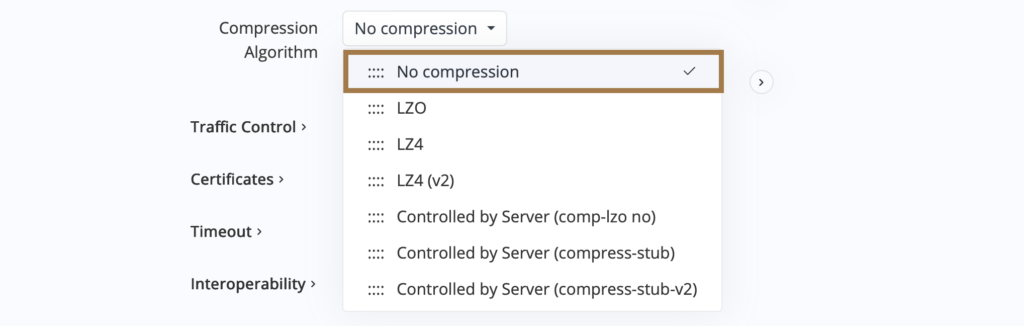
Updating connection compression settings for UniFi OpenVPN in VPN Tracker
You do not need to import a new .ovpn file for this change alone. The corresponding VPN Tracker support FAQ also provides these steps as a compact reference.
Alternative fix: import a fresh UniFi OpenVPN configuration
Reimporting is a useful alternative if your administrator has supplied a new profile or if you are not certain that compression was the only server-side change.
- Open the VPN Server settings in the UniFi Network application.
- Export a current OpenVPN configuration for the relevant user.
- Import the new .ovpn file into VPN Tracker.
- Save the new connection and test access to the required remote resources.
A fresh export can also include changes to certificates, keys, the server address, port, routing, or other connection parameters. Keep the previous connection until the replacement has been tested successfully.
For the complete server and client setup, see our UniFi VPN Setup Guide. Ubiquiti also documents the current requirements and export workflow in its UniFi Gateway OpenVPN Server guide.
Should you turn LZO compression back on?
In most cases, no. Re-enabling deprecated compression would undo the security benefit of the server update. The better approach is to update the client profile so that it matches the server’s no-compression configuration.
If you do not manage the UniFi gateway yourself, ask your network administrator whether the OpenVPN service was upgraded and whether a new profile was issued. Do not make server-side changes without coordinating with the administrator responsible for the gateway.
UniFi OpenVPN still not connecting? Check these items
If changing the compression setting does not restore the connection, the update may have changed more than one parameter—or the timing may be coincidental. Check the following:
- Fresh configuration: Export a new .ovpn file from UniFi and test it as a separate connection.
- Credentials and certificates: Confirm that the user is still enabled and that the profile’s certificates and keys are current.
- Server address: Check the public IP address or DDNS hostname in case it changed during the update or a router restart.
- Reachability: If the UniFi gateway is behind another router, verify that the OpenVPN port is still forwarded to the correct internal address.
- Routing: If the tunnel connects but internal resources remain unavailable, review the remote networks, local network overlap, and UniFi firewall rules.
- Connection log: Review the VPN Tracker log for a compression or negotiation error. If needed, create a Technical Support Report for the VPN Tracker support team.
Reconfiguring anyway? Manage all your VPN connections in one app
A server update is often a good opportunity to clean up old profiles. VPN Tracker can import current UniFi .ovpn configurations and manage OpenVPN alongside WireGuard®, IPsec, L2TP, SSTP, and other business VPN connections in one app.
For teams, TeamCloud lets administrators share preconfigured connections and roll out later configuration updates centrally. That can make the next gateway change easier to manage than distributing replacement profiles manually to every user.
Frequently asked questions
Do I need to export a new .ovpn file after the UniFi update?
Not necessarily. If the only change is that compression has been disabled, setting Compression to No and removing LZO from the existing VPN Tracker connection is sufficient. Import a fresh profile if additional server settings changed or your administrator asks you to replace it.
Why does my old UniFi OpenVPN profile still contain LZO?
The profile reflects the server configuration at the time it was exported. Updating the server does not automatically rewrite a connection already stored on your Mac.
Is LZO compression secure?
OpenVPN discourages compression in encrypted VPN tunnels because of known attack techniques such as VORACLE. Where possible, both client and server should use a no-compression configuration.
Is this a VPN Tracker bug?
No. The connection fails because the old client configuration and the updated UniFi server no longer agree about compression. Updating the existing connection or importing the new UniFi profile resolves that mismatch.
Can I use WireGuard instead of OpenVPN on UniFi?
Many current UniFi gateways also offer WireGuard. Whether you should migrate depends on your gateway, client devices, deployment requirements, and administrator policies. You do not need to change protocols solely to resolve this LZO mismatch.
Your VPN Tracker benefits
- Secure remote access to your company network, home office, and Smart Home – all in one app
- Use your own UniFi VPN gateway
-
Ready-made profiles for 300+ VPN devices
- Configuration wizard for a smooth and fast setup
- For Mac, iPhone, and iPad
- Discover all features