



Azure VPN on Mac, iPhone, and iPad is now much easier to deploy: VPN Tracker can import the complete Azure Point-to-Site configuration package, create optimized OpenVPN and IKEv2 connections, and apply Azure-specific certificate validation automatically.
The configurations described here have been tested with real Azure gateways and real network traffic. Supported scenarios include certificate-based OpenVPN, IKEv2 with EAP-TLS, IKEv2 with RADIUS using EAP-TLS or EAP-MSCHAPv2, and IKEv2 profiles for Azure Virtual WAN. Microsoft Entra ID authentication remains outside the supported VPN Tracker workflow.
Current Azure compatibility in VPN Tracker
- Azure VPN Gateway OpenVPN: supported with certificate authentication and live-tested data traffic.
- Azure VPN Gateway IKEv2: supported with EAP-TLS and live-tested data traffic.
- RADIUS with IKEv2: live-tested with EAP-TLS and EAP-MSCHAPv2.
- Azure Virtual WAN: IKEv2 global profiles with multiple trusted roots are supported. Global multi-root OpenVPN profiles are not currently supported, and multi-hub deployments should be validated in a pilot.
- Microsoft Entra ID: not currently supported in VPN Tracker; Microsoft’s workflow requires Azure VPN Client.
- SSTP: legacy migration only. New Azure SSTP activation ended on August 31, 2026.
Which VPN protocols does Azure support?
Azure VPN Gateway supports OpenVPN, IKEv2, and legacy SSTP for Point-to-Site connections. For new VPN Tracker deployments, use OpenVPN or IKEv2.
- OpenVPN: TLS-based and often the best choice on restrictive networks because it can use TCP 443. VPN Tracker supports Azure certificate profiles. Microsoft Entra ID profiles are not supported.
- IKEv2: Standards-based IPsec with reliable mobility between Wi-Fi and cellular networks. VPN Tracker supports EAP-TLS and tested RADIUS setups using EAP-TLS or EAP-MSCHAPv2. Client networks must normally permit outbound UDP 500 and 4500.
- SSTP: retired for new Azure configurations. Keep it only while migrating an existing deployment.
For Microsoft’s current protocol and authentication matrix, see About Azure Point-to-Site VPN.
Which VPN is best for Azure?
OpenVPN is the best general starting point when users connect from many networks or when outbound IPsec traffic may be blocked. For a VPN Tracker connection, use an Azure certificate-authenticated OpenVPN profile and the configuration package generated for the gateway.
IKEv2 is often the best fit for managed Apple deployments that already use client certificates and prioritize efficient reconnection when moving between Wi-Fi and mobile networks. Choose it only where UDP 500 and 4500 are permitted.
If your gateway currently uses SSTP, treat protocol choice as a migration decision. Adding IKEv2 alongside SSTP is the least disruptive staged path. Moving to OpenVPN requires a coordinated cutover because Azure cannot run SSTP and OpenVPN together on the same gateway. Azure can run IKEv2 and OpenVPN together.
Prerequisites
You need Azure administrator access and a route-based Azure VPN Gateway or supported Virtual WAN setup with Point-to-Site configuration. Before importing, check:
- The selected tunnel and authentication method are enabled on the gateway.
- The client address pool does not overlap the Azure virtual network or users’ local networks.
- Each certificate user or managed device has a unique Client Authentication certificate with its private key and complete chain.
- Internal DNS servers and search domains are known if Azure does not include them in the profile.
- You have generated a fresh Azure VPN client configuration package after the latest gateway or certificate change.
Use a separate client certificate per user or managed device so individual access can be revoked. Never distribute private keys through ordinary email or chat.
Import the complete Azure configuration package
- In the Azure portal, save the Point-to-Site configuration and download a new VPN client configuration package.
- Leave the package as a ZIP file.
- In VPN Tracker, choose New from File and select the downloaded ZIP.
- Choose the supported OpenVPN or IKEv2 connection found in the package and give it a clear name.
- If VPN Tracker asks for a client certificate, select the certificate belonging to that user or device. When exactly one suitable certificate is available, VPN Tracker can resolve it automatically.
- Connect and verify an internal IP address, an internal DNS name, and the applications the user actually needs.
Connect to Azure with OpenVPN
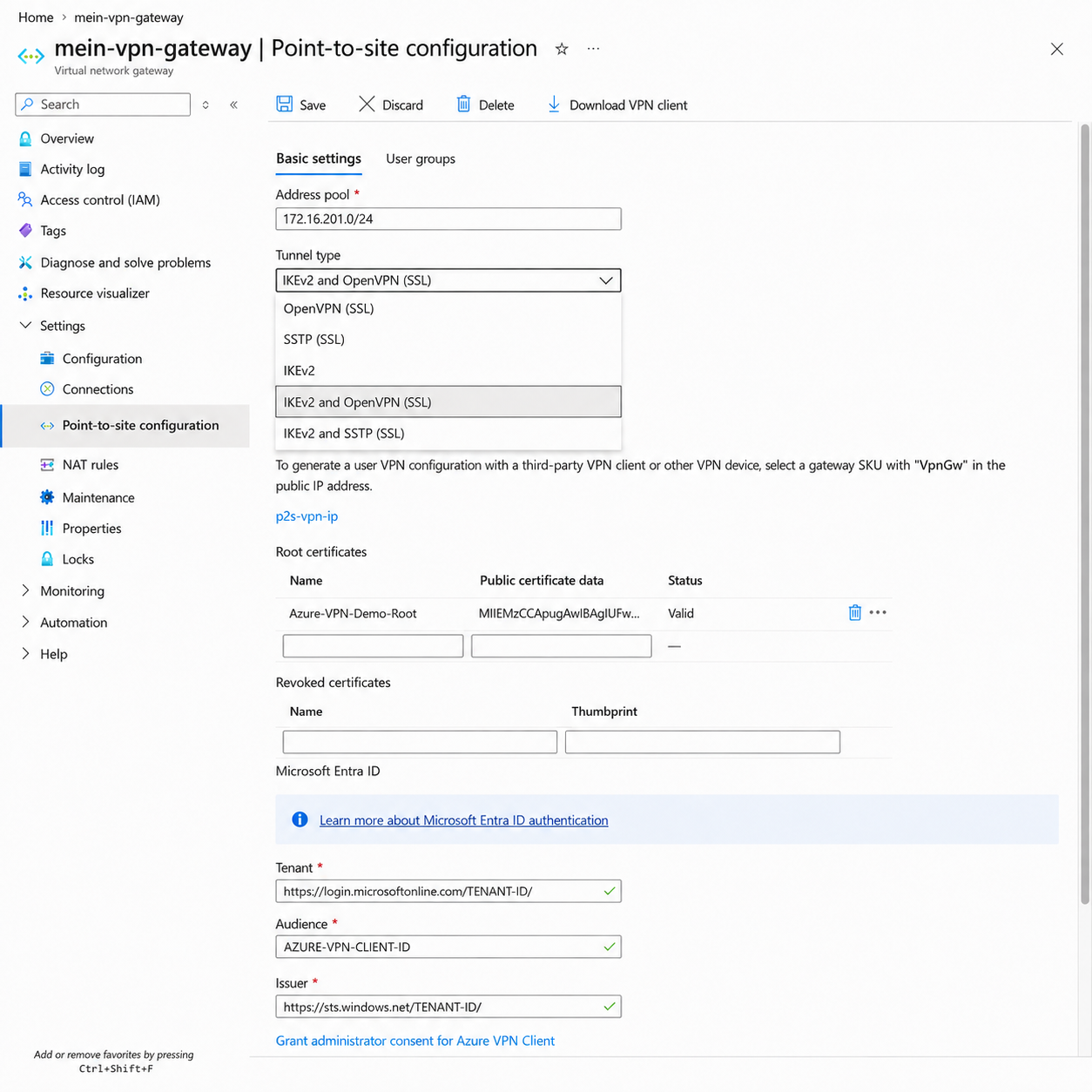
For OpenVPN, select OpenVPN (SSL) or IKEv2 and OpenVPN (SSL).
Configure Azure
- Open Virtual network gateway > Point-to-site configuration in the Azure portal.
- Select OpenVPN (SSL) or IKEv2 and OpenVPN (SSL).
- For this VPN Tracker workflow, choose Azure certificate, upload the public data of the trusted client root CA, and save the gateway configuration.
- Generate and download a fresh VPN client configuration package.
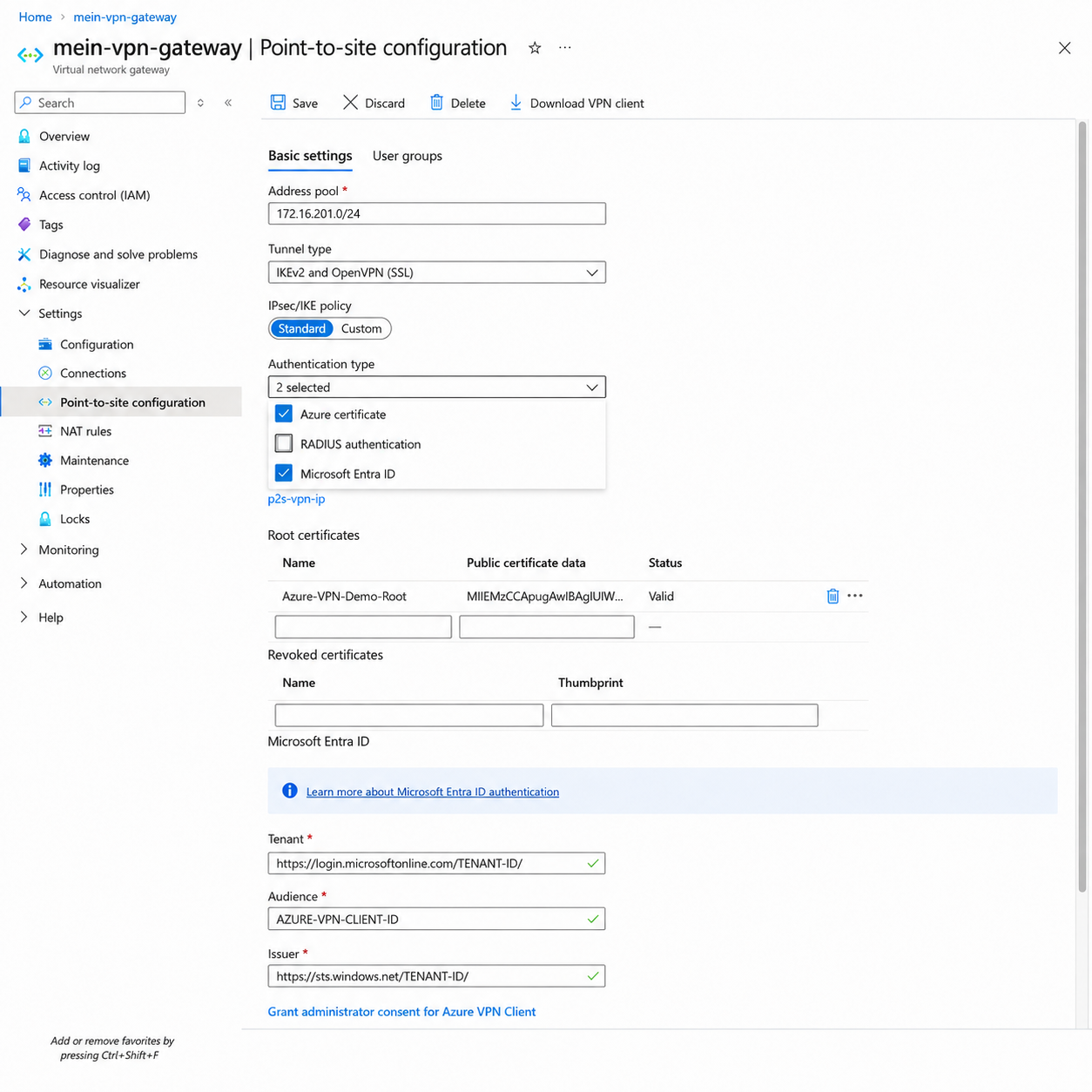
Azure supports multiple authentication types. For the VPN Tracker workflow in this guide, select Azure certificate.
Microsoft Entra ID is not supported in VPN Tracker. Entra ID is available only for OpenVPN, and Microsoft’s documented profile requires Azure VPN Client. Use Azure certificate authentication for the workflow described here.
Create the OpenVPN connection in VPN Tracker
- Choose New from File and select the complete Azure ZIP package.
- Select the imported OpenVPN connection.
- Choose the appropriate client certificate when prompted. VPN Tracker can automatically resolve a unique matching certificate.
- Keep the imported gateway address, protocol, port, routes, and DNS settings. Do not replace the Azure FQDN with an IP address.
- Connect from a network outside Azure and verify both IP connectivity and internal DNS.
If you only have an extracted profile, importing OpenVPN/vpnconfig.ovpn remains available as a manual fallback. The complete ZIP import is preferred because it retains more Azure context.
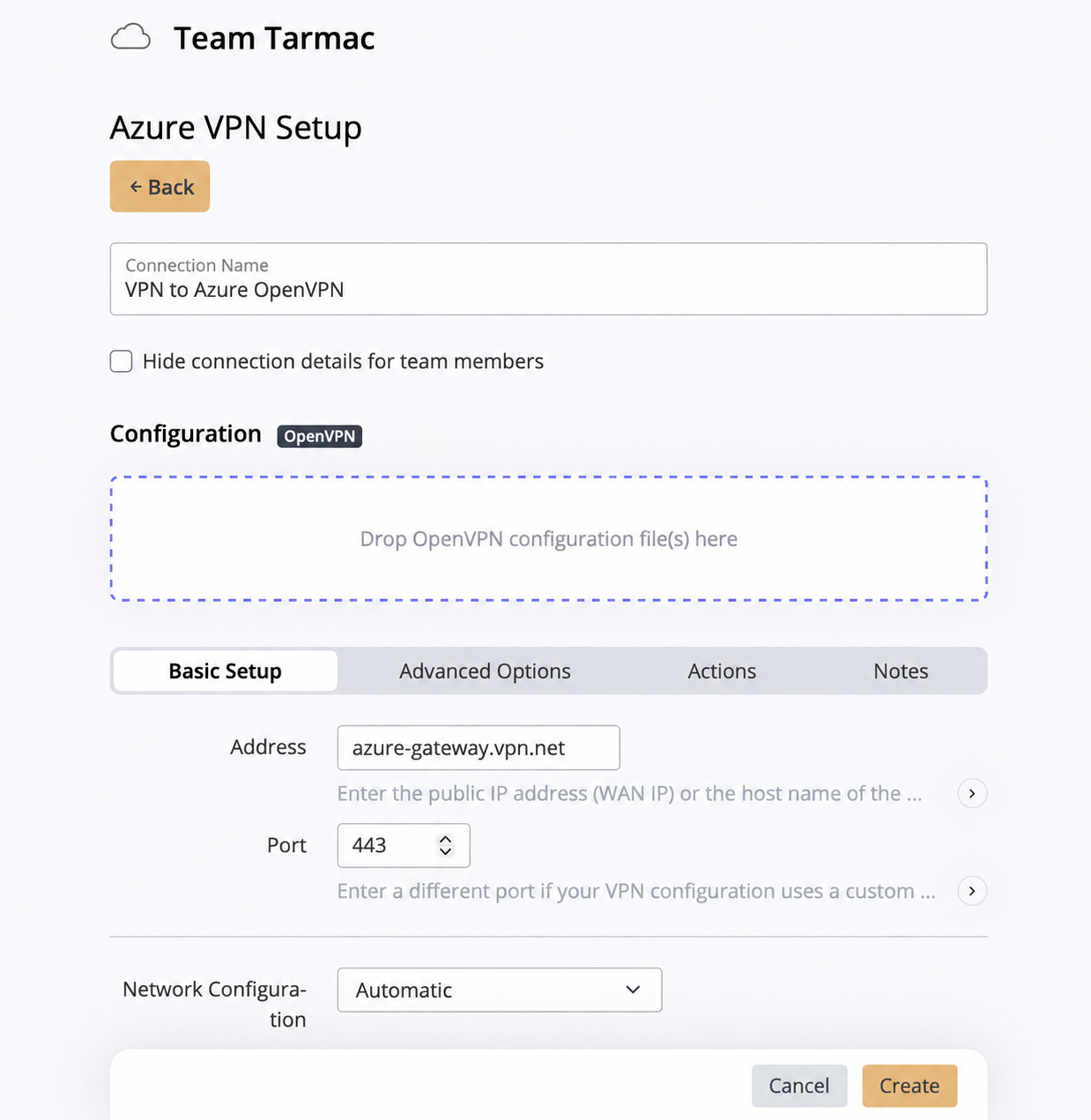
Import the Azure OpenVPN profile, then verify the gateway address, port 443, and network configuration.
Connect to Azure with IKEv2
For IKEv2, select IKEv2 or IKEv2 and OpenVPN (SSL).
Configure Azure
- In Virtual network gateway > Point-to-site configuration, select IKEv2 or IKEv2 and OpenVPN (SSL).
- For certificate authentication, upload the trusted client root CA and issue a Client Authentication certificate with a private key to each user or device.
- Save the configuration and generate a fresh VPN client configuration package.
- Confirm that client networks permit outbound UDP 500 and 4500.
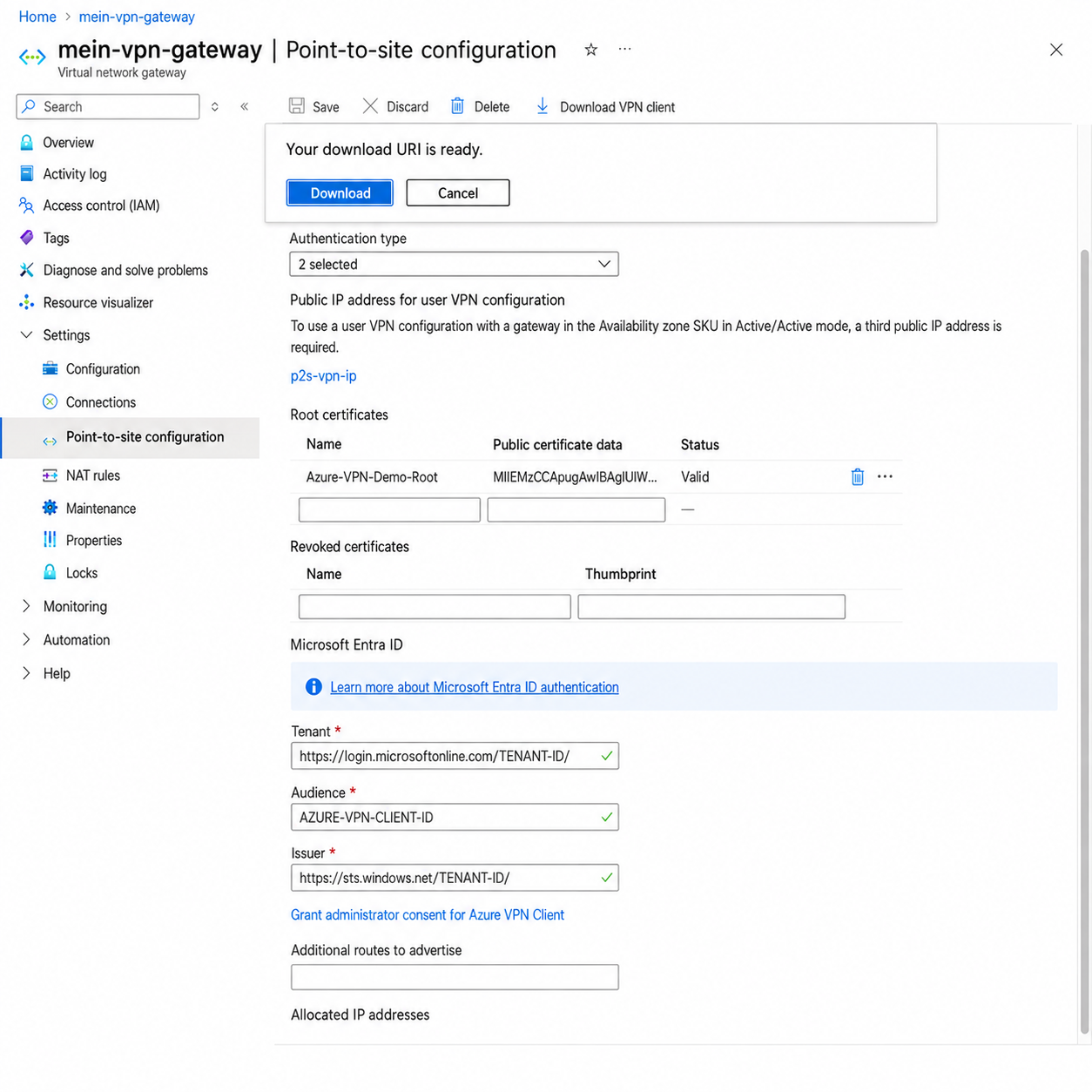
After saving the Point-to-Site configuration, generate and download a fresh VPN client profile package.
Create the IKEv2 connection in VPN Tracker
- Choose New from File and select the complete Azure ZIP package.
- Select the imported IKEv2 connection and choose the correct client certificate if prompted.
- Keep EAP with User Certificate (EAP-TLS) for Azure certificate authentication.
- Keep server verification enabled. Current imports use Verify Against Certificate; the Remote Identity does not need to be manually forced to the gateway FQDN.
- Connect and test an internal IP address and DNS name. Add routes or DNS settings manually only if Azure did not include them.
For a manual fallback, the package contains Generic/VpnSettings.xml. Older instructions may also mention uploading VpnServerRoot.cer and copying a Remote Identity. Those steps are not normally required when the complete package is imported.
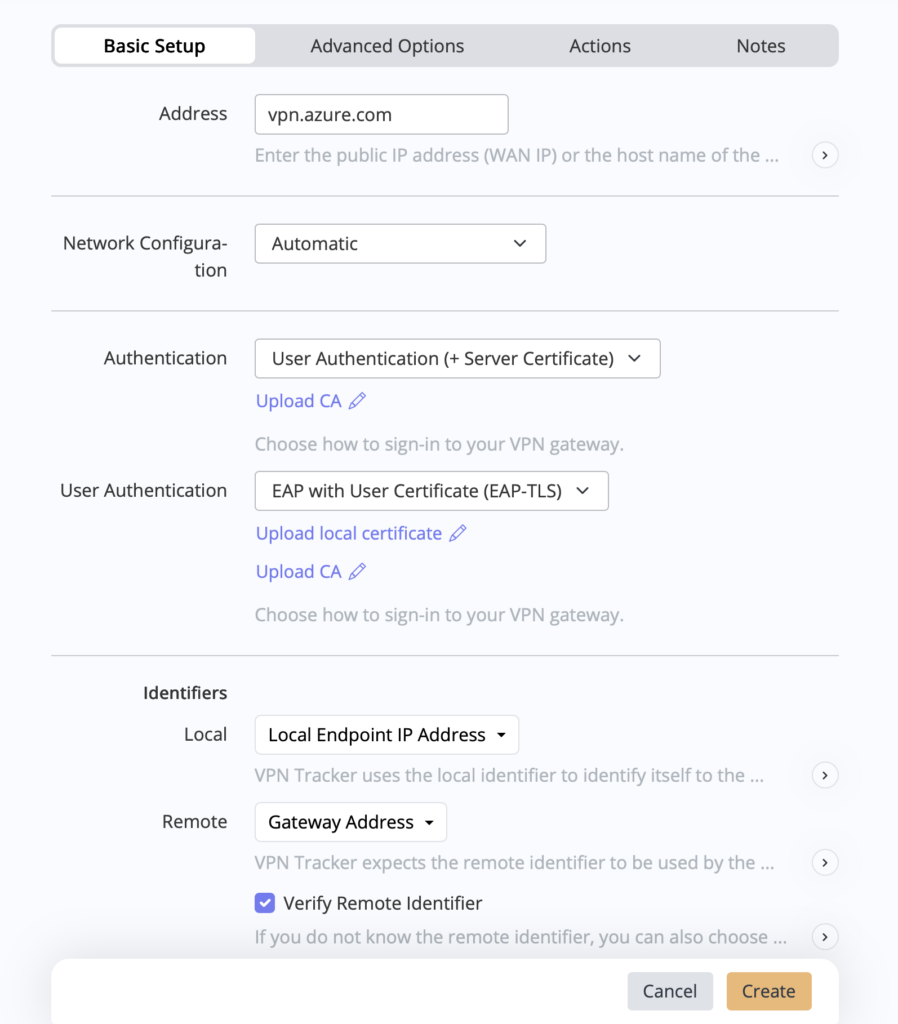
Imported Azure IKEv2 settings use EAP-TLS and certificate-based server verification; manual Remote Identity editing is normally unnecessary.
Use RADIUS with IKEv2
VPN Tracker has been live-tested against Azure IKEv2 with RADIUS using both EAP-TLS and EAP-MSCHAPv2. Select the matching user authentication method in VPN Tracker: a user certificate for EAP-TLS, or username and password for EAP-MSCHAPv2. Validate the complete path from VPN Tracker through Azure to the RADIUS server before rollout, including certificate chains, policies, and timeout behavior.
Azure Virtual WAN profiles
Azure Virtual WAN IKEv2 global profiles with multiple trusted root certificates can be imported and connected without manual identity edits. A global OpenVPN profile containing multiple roots is not currently supported. Multi-hub deployments have not yet received the same end-to-end validation, so pilot the exact downloaded package before broad distribution.
Roll out Azure VPN connections to a team
Build and test one reference connection for each approved protocol before distribution. With VPN Tracker TeamCloud, administrators can share Azure VPN connections using end-to-end encryption and centrally update routes, DNS, gateway settings, and access assignments.
- Import the Azure ZIP package and verify a reference connection from home, office, hotspot, and guest networks.
- Use separate, clearly named connections for production, staging, regions, or virtual networks.
- Keep each client certificate and private key assigned to its individual user or managed device.
- Document authentication, certificate lifetime, routes, DNS behavior, ownership, and rollback.
- Use group-based access and remove access promptly when roles change.
iPhone and iPad: VPN Tracker can use the imported Azure setup on iOS, but iOS does not currently offer the same certificate chooser as macOS. Deploy one unambiguous matching user certificate per device and validate the connection on physical devices before broad rollout.
Troubleshooting Azure VPN connections
- The ZIP package does not import: Generate a fresh client package after saving the Azure Point-to-Site configuration. Import the ZIP itself instead of a parent folder or an unrelated AzureVPN XML file.
- Certificate authentication fails: Confirm the client certificate includes its private key, is valid for Client Authentication, chains to a root uploaded to Azure, and is neither expired nor revoked.
- No client certificate is selected: Install the user certificate and full chain. If several certificates match, remove ambiguity or select the intended certificate on macOS; on iOS, deploy a unique matching certificate.
- Server identity validation fails: Re-import a freshly generated package and keep Verify Against Certificate enabled. Do not manually force the Remote Identity to the gateway FQDN unless a specific legacy configuration requires it.
- RADIUS authentication fails: Match EAP-TLS or EAP-MSCHAPv2 on both sides, then check RADIUS policy, certificate trust, credentials, reachability, and timeout logs.
- The VPN connects but resources are unreachable: Compare VNet ranges with the imported remote networks and check Network Security Groups, user-defined routes, peering, return routing, and destination firewalls.
- IP addresses work but names do not: Verify internal DNS servers and search domains are included and reachable through the tunnel.
- OpenVPN works but IKEv2 does not: Test another network; guest networks often block UDP 500 or 4500.
- A Virtual WAN OpenVPN profile contains multiple roots: This global multi-root OpenVPN setup is not currently supported. Use a supported IKEv2 profile or validate a different Azure package design.
- Microsoft Entra ID login is expected: Entra ID profiles require Azure VPN Client and are not supported in VPN Tracker.
- A profile stopped working after an Azure change or certificate rotation: Generate and import a new client configuration package.
Legacy SSTP connections and migration
Do not start a new Azure SSTP deployment. Microsoft no longer supports enabling SSTP on Azure VPN gateways as of August 31, 2026, and existing SSTP connections are scheduled to stop working after March 31, 2027. See Microsoft’s SSTP retirement and migration guidance.
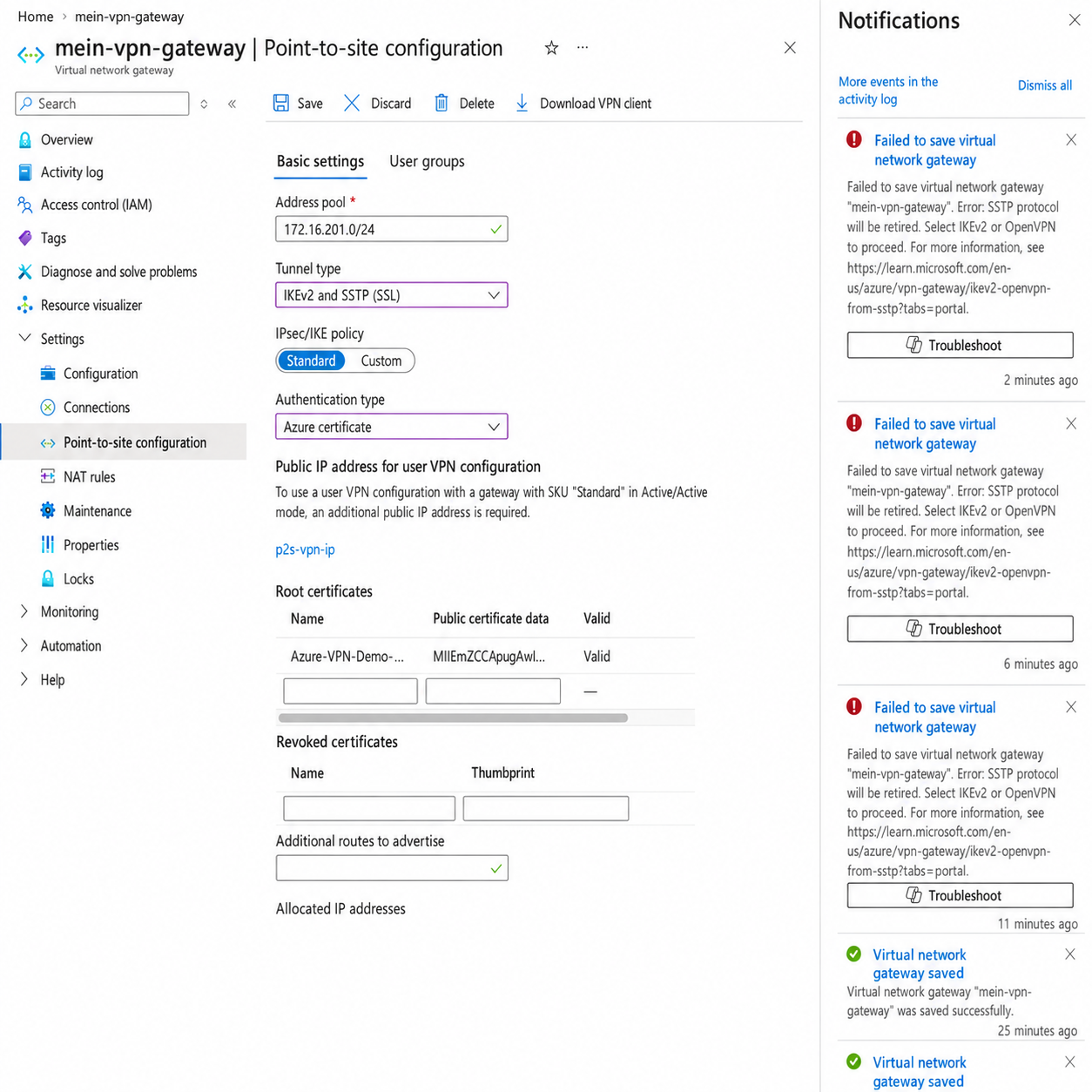
Azure rejects new SSTP configurations and instructs administrators to select IKEv2 or OpenVPN.
For an existing VPN Tracker SSTP connection, keep the current profile only long enough to support an orderly migration:
- Inventory affected gateways, users, certificates, routes, DNS settings, and business-critical resources.
- For the lowest-risk staged migration, add IKEv2 alongside SSTP, generate new client profiles, and move users in controlled batches.
- If OpenVPN is preferred, plan a cutover window. SSTP and OpenVPN cannot coexist on the same Azure gateway, so existing SSTP users lose connectivity when the gateway switches.
- Pilot the new VPN Tracker connection, verify access and DNS, then distribute it to the remaining users.
- Remove obsolete SSTP connections and certificates after the migration is complete and documented.
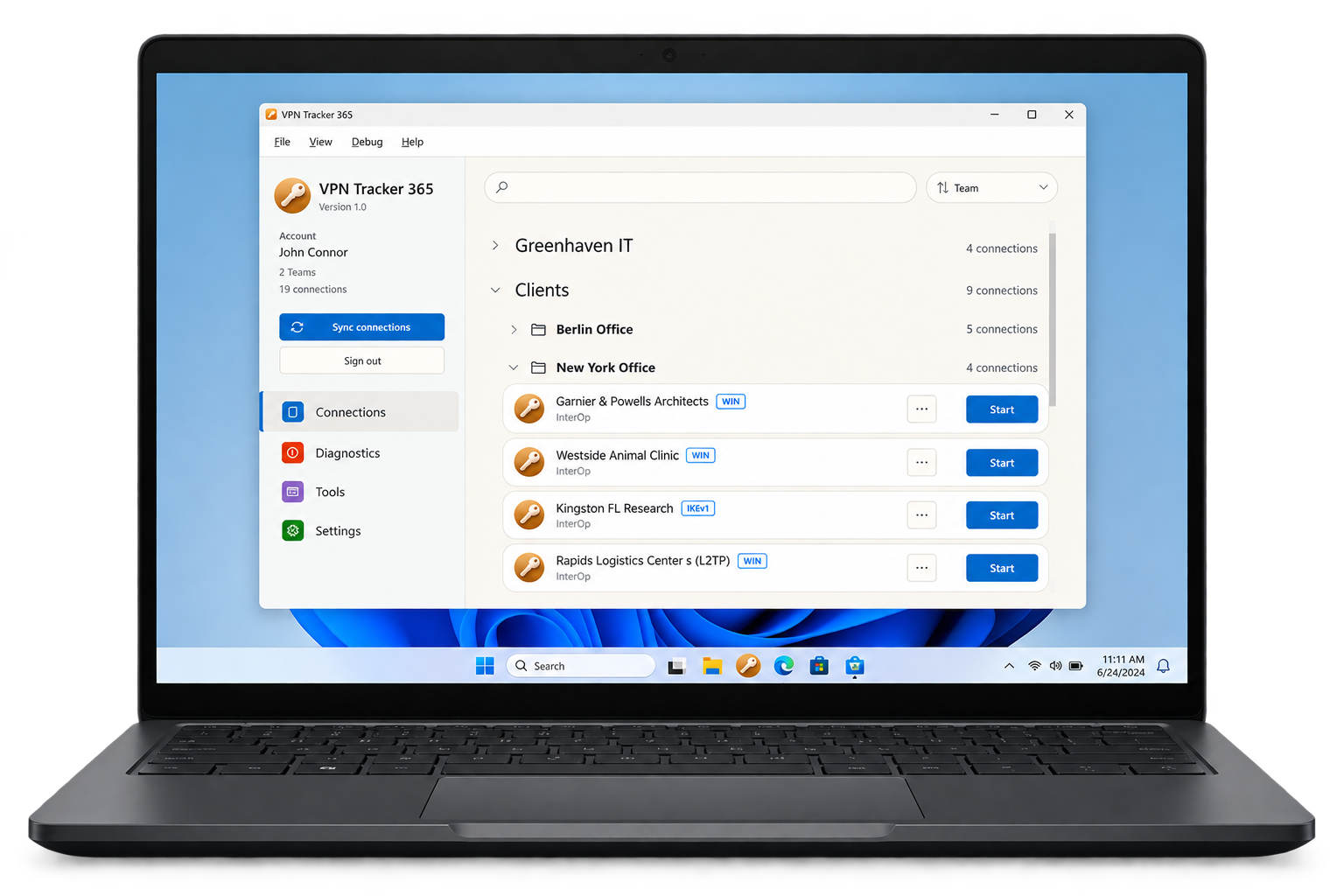
Move from SSTP with confidence
Need to migrate an existing Azure SSTP deployment to IKEv2 or OpenVPN? VPN Tracker Consulting can help assess your setup, choose the right protocol, plan the cutover, and prepare a controlled rollout for your team.
VPN Tracker for Windows preview
Planning a mixed Mac and Windows rollout? Explore the VPN Tracker for Windows preview and follow the latest development updates before finalizing your deployment.
Frequently asked questions
Can Azure run OpenVPN and IKEv2 at the same time?
Yes. Azure VPN Gateway can be configured for IKEv2 and OpenVPN together. This is useful when different user groups or network conditions require different protocols.
Can Azure run OpenVPN and SSTP at the same time?
No. Both are TLS-based protocols and cannot coexist on the same Azure VPN Gateway. A move from SSTP to OpenVPN therefore requires a planned cutover.
Does Microsoft Entra ID authentication work with VPN Tracker?
No. Azure offers Entra ID only for OpenVPN through the Azure VPN Client workflow. VPN Tracker currently supports the Azure certificate and tested IKEv2 RADIUS configurations described in this guide, not Entra ID profiles.
Should every user receive a separate client certificate?
Use one certificate per user or managed device wherever practical. Unique certificates make it possible to revoke one user or device without replacing credentials for the rest of the team.
Where can I start an Azure connection in VPN Tracker?
Download the current Azure VPN client configuration package, then choose New from File in VPN Tracker and select the complete ZIP. You can also open the Azure connection creator for a guided manual fallback.
Connect to Azure with VPN Tracker
Create an Azure Point-to-Site connection for OpenVPN or IKEv2, save it securely in your VPN Tracker account, and use it on Mac, iPhone, and iPad. Test the connection with a pilot user before sharing it with your team.
Your VPN Tracker benefits
- Secure remote access to private Azure resources
- Complete Azure package import for OpenVPN and IKEv2
- Central team rollout with TeamCloud
- For Mac, iPhone, and iPad