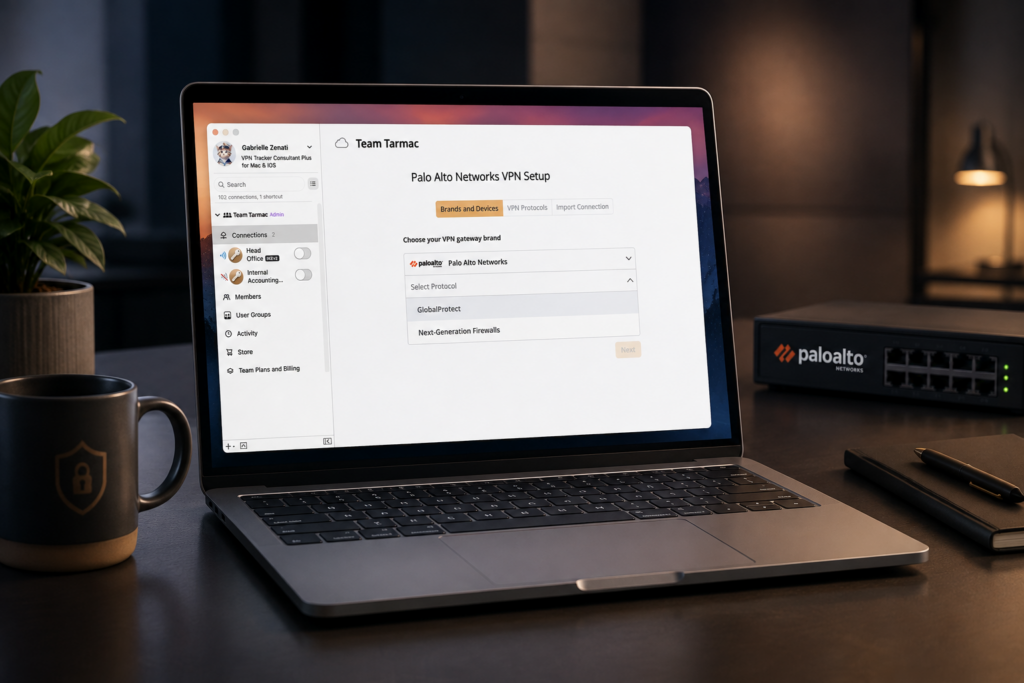




Palo Alto GlobalProtect VPN setup in VPN Tracker gives administrators a practical way to configure, test, and roll out one or multiple connections to compatible GlobalProtect portals and gateways.
Important: GlobalProtect support is currently a beta feature in VPN Tracker. GlobalProtect deployments vary considerably, so validate your exact portal, gateway, authentication, DNS, and routing setup before a wider rollout.
Why VPN Tracker?
- Multiple VPN technologies in one app: Manage GlobalProtect alongside IPsec, IKEv2, OpenVPN, WireGuard, and other supported business VPN technologies instead of maintaining a separate client for every gateway.
- Secure team rollout: Share preconfigured connections with end-to-end encryption, control access by team or group, hide connection details, revoke access, and distribute configuration updates centrally.
- Productivity features: Depending on the plan and platform, VPN Shortcuts, AutoConnect, InfiniConnect, connection folders, and simultaneous VPN connections can simplify everyday access and support.
- Mac, iPhone, and iPad: VPN Tracker provides a consistent Apple-focused environment for managing supported connections across macOS, iOS, and iPadOS. Protocol and feature availability can vary by platform.
- Administrator tooling: Team management, role-based access, onboarding profiles, MDM options, and centralized diagnostics help standardize deployment and troubleshooting.
Before You Begin
Gather the following values from the existing GlobalProtect configuration and the teams responsible for identity, DNS, and routing:
- The public GlobalProtect portal address, normally a fully qualified hostname such as vpn.example.com
- Whether users should connect to the portal or directly to a specific gateway
- The required username format and, if applicable, the user domain
- Whether the deployment uses username and password, a client certificate, or both
- The issuing CA certificate if the portal or gateway uses an internal or private CA
- The internal DNS servers and search domains, or confirmation that the gateway supplies them automatically
- The private network ranges users should be able to reach
- Whether the deployment requires SAML, an external browser, MFA, HIP/device posture, Always On, or pre-logon
Important: You need administrator access to the Palo Alto Networks configuration and VPN Tracker with the GlobalProtect connection profile available.
Supported Palo Alto devices
VPN Tracker connects to compatible GlobalProtect portals and gateways rather than relying on a specific appliance model. The following table covers common Palo Alto Networks platforms used for one-site and multi-site deployments.
| Device series | Popular models | Typical target group | VPN Tracker support |
|---|---|---|---|
| PA-400 Series | PA-410, PA-415, PA-440, PA-450, PA-460 | Small organizations, retail locations, and branch offices | ✓ |
| PA-500 Series | PA-505, PA-510, PA-520, PA-540, PA-560 | Small offices and enterprise branches | ✓ |
| PA-1400 Series | PA-1410, PA-1420 | Large branches and small enterprise campuses | ✓ |
| PA-1500 Series | PA-1510-POE, PA-1520-POE, PA-1530-POE | Distributed enterprise branches and campus edge deployments | ✓ |
| PA-3400 Series | PA-3410, PA-3420, PA-3430, PA-3440 | Enterprise internet gateways and high-throughput campuses | ✓ |
| PA-3500 Series | PA-3510, PA-3520, PA-3530, PA-3540 | Large branches, enterprise perimeters, and data centers | ✓ |
| PA-5400 Series | PA-5410, PA-5420, PA-5430, PA-5440, PA-5445 | High-speed data centers, internet gateways, and service providers | ✓ |
| VM-Series | Deployments on VMware, AWS, Azure, and Google Cloud | Cloud and hybrid enterprise environments | ✓ |
✓ indicates that VPN Tracker can be configured for a compatible GlobalProtect portal or gateway on this platform. It is not a certification of every PAN-OS release, authentication flow, or policy combination. Prisma Access Mobile Users deployments can also be evaluated using the same portal and gateway checks described in this guide.
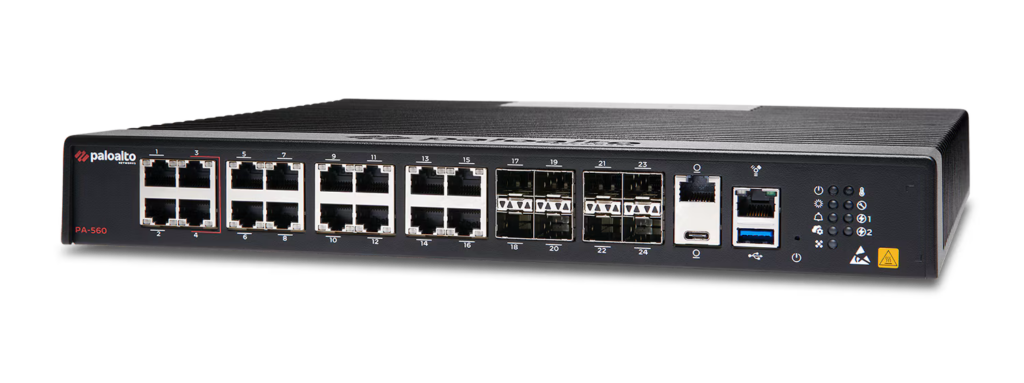
Works with Palo Alto PA-560 NGFW and all other mainstream models
Basic Palo Alto GlobalProtect VPN setup
If GlobalProtect already works for your organization, you normally do not need to change anything on the firewall. Use the existing portal address and the authentication details documented for your deployment and continue with Set up GlobalProtect in VPN Tracker.
For a new deployment, these are the main server-side components. Menu names can differ between PAN-OS versions, Panorama, and Strata Cloud Manager, so use the matching Palo Alto Networks documentation for your platform.
- Prepare the public address and certificates. Create an external DNS name for the GlobalProtect service and configure a portal or gateway server certificate whose subject alternative name matches that hostname. A certificate from a public CA is easiest for clients to trust. If you use a private CA, securely provide its root and any required intermediate certificates to the users.
- Configure the GlobalProtect portal. Under Network > GlobalProtect > Portals, bind the portal to the correct interface and IP address, select its SSL/TLS service profile, and assign a client authentication configuration for Mac or Any OS.
- Configure an external gateway. Under Network > GlobalProtect > Gateways, configure the public gateway, authentication profile, tunnel interface, and tunnel mode. Assign an address pool large enough for concurrent users.
- Configure users and authentication. Use a local or external authentication profile such as LDAP or RADIUS. If client-certificate authentication is required, configure a certificate profile and decide whether users must present credentials, a certificate, or both.
- Configure routes and DNS. In the gateway client settings, define the access routes for split tunneling or configure a full tunnel. Add the internal DNS servers and DNS suffixes that remote users require.
- Add routing and security policy. Make sure the GlobalProtect client IP pool has a return route and that security rules allow the GlobalProtect zone to reach the intended internal networks. Configure internet egress and NAT as well if all traffic is meant to pass through the VPN.
- Commit and test. Commit the configuration and verify that the public hostname resolves externally, the portal is reachable over HTTPS, the certificate chain is valid, the test user matches the intended authentication profile, and internal routing and DNS work.
Good to know: Palo Alto Networks documents TCP port 443 for GlobalProtect SSL communication. Native GlobalProtect deployments using its optional IPsec tunnel mode can also use UDP port 4501. Check the transport used by your deployment rather than opening unrelated ports broadly.
Accessing Palo Alto GlobalProtect VPN Setup in VPN Tracker
- Open VPN Tracker and choose to add a new connection
- Select Palo Alto Networks and the GlobalProtect connection type
- Click Create to start entering your connection details
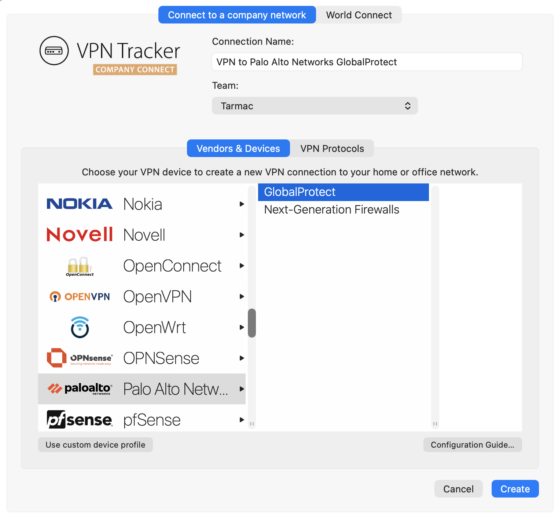
Choose Palo Alto Networks > GlobalProtect in VPN Tracker
How to Map GlobalProtect Settings into VPN Tracker
Host Name, URL or IP Address
Enter the public address that users normally enter as their GlobalProtect portal address, for example https://vpn.example.com. In most deployments this is the portal FQDN, which can then direct the client to the appropriate gateway. If your administrator specifically provides a direct external gateway address, use that value instead.
Prefer the hostname over a raw IP address. The hostname must resolve from the internet and must match the portal or gateway server certificate. If the service uses a non-standard HTTPS port, include it only when your administrator confirms that the deployment and client profile support it.
Domain
Enter a domain only if the authentication system expects one separately. This is usually related to the User Domain and Username Modifier in the Palo Alto authentication profile.
- If the firewall expects only the username, leave Domain empty and enter the username exactly as instructed.
- If the firewall expects an Active Directory or authentication domain, enter the value supplied by the administrator.
- Do not guess whether the expected login is user, DOMAIN\user, or user@example.com. The authentication profile can rewrite the value, and adding the domain twice can cause a login failure.
Authentication: TLS
TLS protects and authenticates the connection to the GlobalProtect service. It is separate from the username and password entered under User Authentication.
- Upload local certificate: Use this only when the portal or gateway requires a client certificate. Import the user or device certificate together with access to its private key. The certificate must be issued by a CA accepted by the Palo Alto certificate profile and must contain the identity fields expected by that profile.
- Upload CA: Use this when the portal or gateway certificate is issued by a private CA that the Mac or VPN Tracker does not already trust. Import the CA certificate, not the gateway's private key. Publicly trusted certificates normally do not require a separate CA upload.
Requiring a client certificate and using a private server CA are different things. A deployment may use either, both, or neither.
User Authentication
For a conventional GlobalProtect authentication profile, select Username + Password. Use the unique account assigned to the user. Depending on the gateway, the password field may also accept a one-time password or a combined password and token value.
VPN Tracker supports GlobalProtect password prompts, browser-based sign-in, one-time codes, challenge responses, and authentication cookies. Because GlobalProtect support is currently in beta, test the complete portal and gateway login sequence with the intended identity provider before a wider rollout. Operating-system SSO and policy features tied specifically to the official GlobalProtect app may behave differently.
Verify Remote Identifier
Leave Verify Remote Identifier enabled. It helps ensure that the remote service presents the identity expected for the configured hostname. The public hostname entered in VPN Tracker and the names in the server certificate should agree.
If verification fails, fix the hostname, DNS, or certificate. Disabling identity verification should not be the routine solution to a certificate mismatch, because it weakens protection against connecting to the wrong server.
DNS settings
GlobalProtect gateways can provide DNS servers and DNS suffixes in their client settings. The corresponding VPN Tracker options control how those values are used on the Mac:
- Use Remote DNS Server: Enable this when internal hostnames must be resolved by a DNS server reachable through the VPN.
- Receive DNS Settings from VPN Gateway: Keep this enabled when the Palo Alto gateway supplies the correct DNS servers and search domains. If it does not, turn it off and enter the administrator-provided DNS values manually in the available fields.
- Use DNS Server for – Search Domains (if available): This is the usual split-DNS choice. Queries for the internal search domains go to the remote DNS server, while unrelated queries can continue to use the local DNS service. Select an all-queries option only when company policy requires every DNS request to use the VPN DNS server.
- Use for reverse lookup of IP addresses in remote networks: Leave this enabled when the remote DNS server contains reverse DNS records for internal addresses. It is useful for tools that display hostnames from private IP addresses.
If an internal resource works by IP address but not by name, compare the DNS server and suffixes configured under the GlobalProtect gateway client settings with the values received by VPN Tracker. See our VPN DNS configuration guide for more detail.
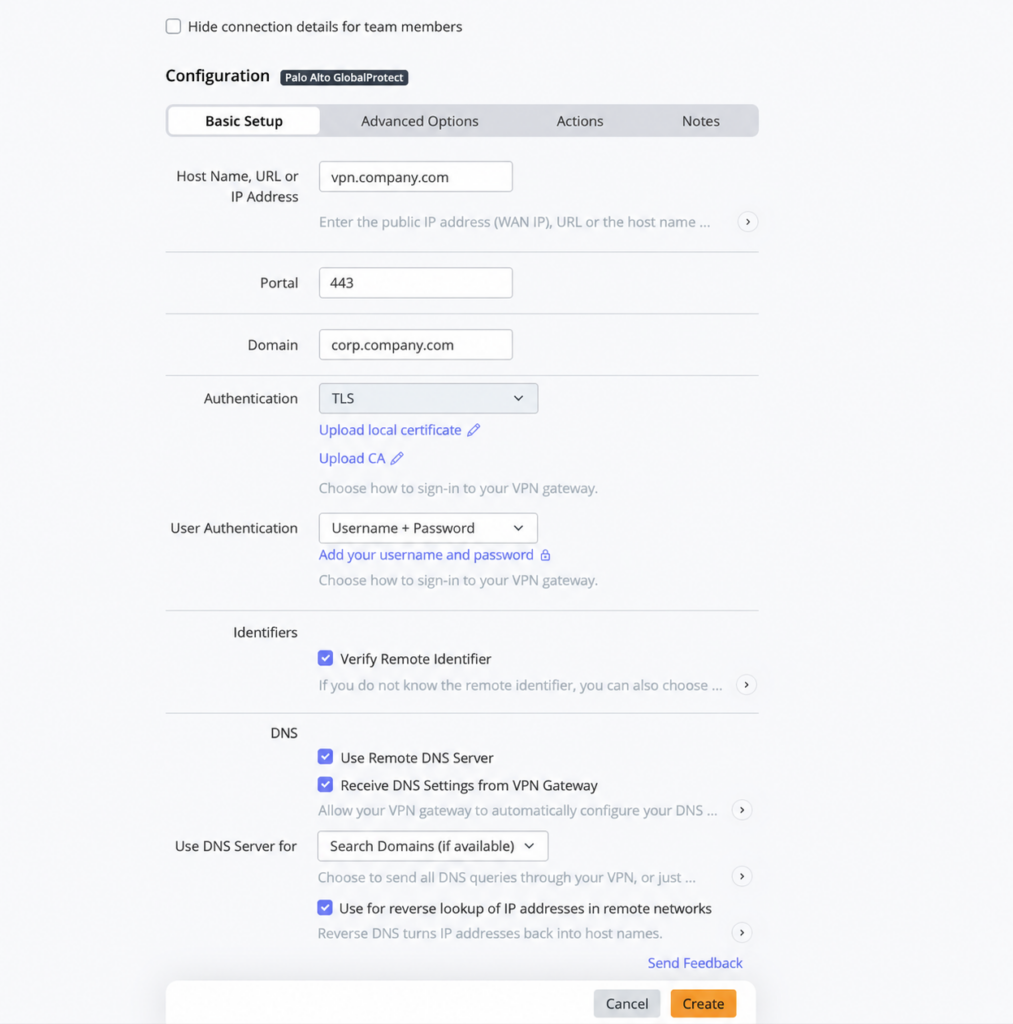
Palo Alto GlobalProtect VPN settings
Sharing a GlobalProtect VPN Connection with Your Team
After each connection has passed its portal, gateway, routing, DNS, and authentication tests, save it as a VPN Tracker team connection instead of distributing configuration files manually. For multi-site deployments, use clear names and folders for each portal, gateway, location, or customer environment. TeamCloud uses end-to-end encryption for connection deployment and lets administrators manage access and updates centrally.
- Create or select the appropriate VPN Tracker team and add the tested GlobalProtect connection or connections to it
- Grant access only to the required team members or groups. Enable Hide connection details for team members when recipients do not need to inspect the configuration
- Include shared infrastructure values such as the portal address, CA certificate, DNS behavior, and routes where appropriate. Keep personal passwords, one-time codes, and user-specific client certificates assigned to the individual user
- Test with a normal recipient account, then use the team connection for central updates and revoke access when a person changes role or leaves the organization
Guide: For the complete VPN Tracker team workflow, including team creation, invitations, groups, zero-trust options, updates, and connection removal, see Share VPN Connections – Setting Up VPN Tracker Teams for Your Company.
Troubleshooting Palo Alto GlobalProtect VPN Problems
- The portal cannot be reached: Confirm that the public hostname resolves on the current network and that HTTPS access to the service is allowed. Try the exact portal URL in a browser to check basic reachability, without assuming a successful web page login proves VPN compatibility.
- Certificate or remote-identifier error: Use the FQDN covered by the certificate, check the full certificate chain, and import the correct private CA where required. Do not replace the hostname with an IP address unless the certificate also covers that IP address.
- Username or password is rejected: Verify the expected username format, the Domain field, the authentication profile selected for Mac or Any OS, the profile allow list, and whether the portal and gateway require different credentials.
- A second login fails after the first succeeds: The portal and gateway may use different profiles, or the deployment may expect an authentication cookie or a password that cannot be reused. Ask the administrator to compare the portal and gateway logs.
- Client certificate is rejected: Confirm that the certificate includes its private key, chains to a CA accepted by the gateway certificate profile, is not expired or revoked, and contains the username or device identity field expected by that profile.
- Connected, but no internal access: Check the assigned client address, split-tunnel access routes, security policies, NAT where applicable, and return routing to the client IP pool.
- Internal names do not resolve: Check the DNS servers and suffixes sent by the gateway, enable remote DNS in VPN Tracker, and verify that the internal DNS server itself is reachable through the tunnel.
- Works on one network but not another: Compare DNS, HTTPS filtering, captive portals, proxies, and network firewalls. Collect the VPN Tracker connection log and the matching GlobalProtect portal and gateway logs before changing security settings.
Connect to Palo Alto GlobalProtect with VPN Tracker
Once the portal address, authentication method, certificate trust, routes, and DNS settings match the GlobalProtect deployment, save the connection and test access to one internal hostname and one internal IP address. For team rollouts, validate each connection with a small pilot group before sharing it more widely. Where you manage multiple GlobalProtect environments, test and document every portal and gateway separately. You can also visit the Palo Alto Networks VPN setup page for current compatibility and download information.
Your VPN Tracker benefits
- Secure remote access to your company network, home office, and Smart Home - all in one app
- Use your own VPN gateway
-
Ready-made profiles for 300+ VPN devices
- Configuration wizard for a smooth and fast setup
- For Mac, iPhone, iPad
- Discover all features
Need help with your GlobalProtect rollout?
Whether you are setting up one connection or coordinating multiple portals, gateways, locations, and user groups, our VPN consultants can help you plan, configure, test, and roll out GlobalProtect connections in VPN Tracker.