



LANCOM is one of Europe's leading VPN gateway brands for small and medium-sized businesses. The LANCOM product portfolio is now offered by Rohde & Schwarz Networks and Cybersecurity, and most modern LANCOM VPN routers and Unified Firewalls support secure IKEv2 remote-access connections for Mac, iPhone and iPad.
As of July 1, 2026, LANCOM Systems and Rohde & Schwarz Cybersecurity merged to form Rohde & Schwarz Networks and Cybersecurity GmbH. LANCOM continues as the product brand, so current hardware may be labeled R&S®LANCOM while older devices and documentation still use LANCOM Systems. The branding change does not alter existing device configurations or VPN compatibility.
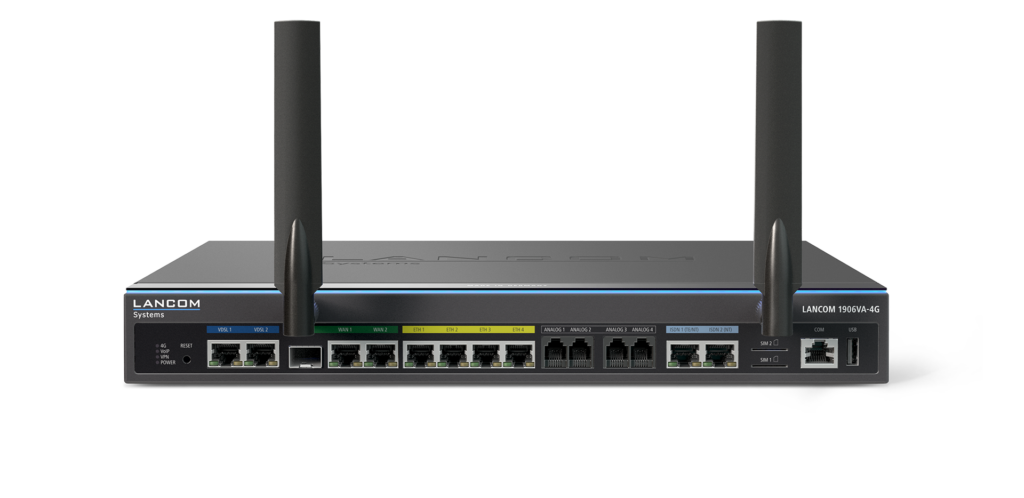
LANCOM 1900 Series Router
This guide walks you through how to connect to LANCOM IKEv2 VPN on your Mac, iPhone or iPad and easily share pre-configured connections with other team members in VPN Tracker.
Menu
- Overview: Compatible LANCOM Devices
- Legacy LANCOM IKEv1 devices and migration guidance
- Configuring LANCOM IKEv2 VPN
- Using the .ini File Importer in VPN Tracker
- LANCOM IKEv2 VPN Connection: Manual Setup
- Sharing a LANCOM IKEv2 VPN Connection with Your Team
Overview: Compatible LANCOM Devices
VPN Tracker is compatible with the entire range of professional LANCOM networking hardware, including both classic business routers or next-generation unified firewalls:
| Device Category | Operating System | Popular Models |
|---|---|---|
| Business Routers | LCOS | 1700, 1800, 1900, & 2100 Series |
| Unified Firewalls | LCOS FX | UF-60, UF-160, UF-260, UF-T60, UF-360+ |
| Central Site Gateways | LCOS | ISG-1000, ISG-5000, ISG-8000 |
| Virtual Routers | LCOS | vRouter 1000, vRouter 3000 |
Protocol note: LANCOM introduced IKEv2 with LCOS 9.20, but availability depends on the exact device model and the firmware it can run. Use the latest firmware supported by your gateway and choose IKEv2 wherever possible. If you maintain an older deployment, review the legacy guidance below before selecting a VPN Tracker profile.
Legacy LANCOM IKEv1 devices and migration guidance
IKEv1 is a legacy protocol and is not recommended for new VPN deployments. The IETF has formally deprecated IKEv1 and recommends upgrading or replacing IKEv1-only systems. VPN Tracker continues to support existing LANCOM IKEv1 connections for compatibility, but the IKEv2 configuration steps in this guide do not convert an IKEv1 gateway configuration.
Which LANCOM devices can use IKEv2?
| LANCOM family | Recommended approach |
|---|---|
| Current 1800, 1900 and 2100 routers; Unified Firewalls | Use IKEv2 for new and migrated connections. Confirm that the gateway is already configured for IKEv2 and that its firmware matches the settings supplied by your administrator. |
| 1700 and older 1800 models | Check the exact model and installed firmware. IKEv2 was introduced in LCOS 9.20, but not every older model can run a suitable LCOS release. |
| Legacy 1600, 3000, 4000, 6000, 7000 and 8000 profiles | Treat these generic VPN Tracker profiles as legacy compatibility options. Many corresponding devices are end of life. Keep IKEv1 only for an existing configuration that cannot yet be migrated, and plan a move to supported IKEv2-capable hardware. These legacy profiles should not be confused with current products such as the ISG-8000. |
Before changing the VPN Tracker profile:
- Identify the exact LANCOM model and its installed LCOS or LCOS FX version.
- Check whether that model supports IKEv2 and update it to the latest supported firmware.
- Reconfigure the VPN connection on the gateway for IKEv2, including its authentication and cryptographic settings.
- Only then create or import the matching LANCOM IKEv2 connection in VPN Tracker.
Simply choosing an IKEv2 profile in VPN Tracker does not migrate an IKEv1 gateway. If the gateway must remain on IKEv1 temporarily, continue using its matching LANCOM IKEv1 profile and restrict the connection to the existing deployment while planning the upgrade.
Configuring LANCOM IKEv2 VPN
For the next part of the guide, we'll assume you've already configured an IKEv2 VPN tunnel on your LANCOM device. If you haven't done this yet, we recommend referring to the official documentation for your specific gateway model. This can be found on the LANCOM website.
IKEv2 VPN setup options
Currently, LANCOM offers three setup options for IKEv2 VPN:
- The 1-Click-VPN Wizard (Routers): This is the standard method for LCOS-based routers using LANconfig. It generates a ready-to-use .ini configuration file that contains all necessary encryption and gateway settings.
- VPN Connection Export (Unified Firewalls): For the UF Series (LCOS FX), you can export a connection profile directly from the web interface. This usually provides a .zip archive .ini file needed for the import.
- Manual configuration – Preferred by network administrators with complex routing requirements that aren't covered by the standard wizards.
For most cases, we recommend using the LANCOM VPN wizard. VPN Tracker offers full support for .ini files and includes an intelligent importer that parses your configuration settings, helping you get connected in seconds without manual data entry.
Using the LANCOM .ini File Importer
Once you've completed the steps in the LANCOM 1-Click-VPN wizard (for Routers) or clicked Export in your VPN Connection settings (for Unified Firewalls), you'll receive an .ini configuration file. This file contains all the necessary encryption and gateway information to automate your setup. In order to connect to your LANCOM IKEv2 VPN on your Mac, download VPN Tracker for Mac and drag and drop the .ini file onto the VPN Tracker icon in the dock:

Drag the connection file onto the VPN Tracker icon to open the importer
You'll then see the following dialogue:
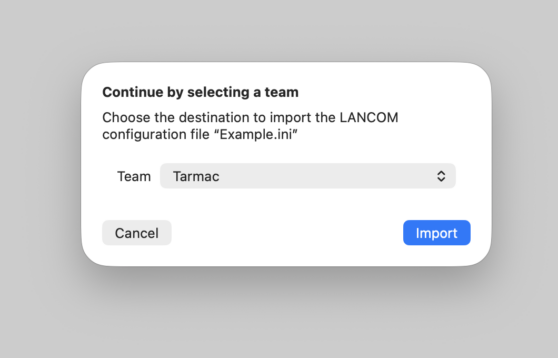
Choose the team and folder where you would like to save your new connection, then click Import connection.
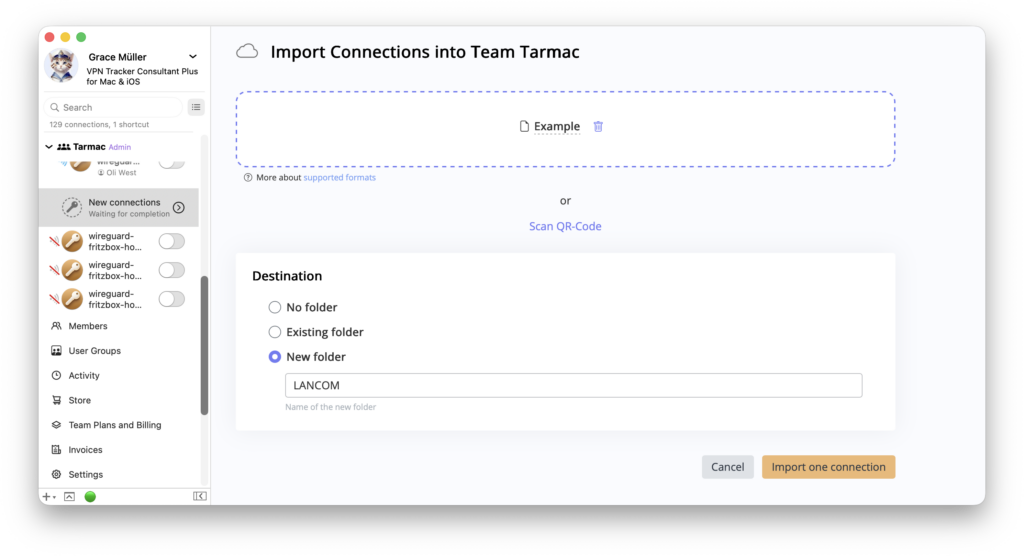
Choose where to save your LANCOM IKEv2 connection
VPN Tracker will then automatically parse the file and import your LANCOM connection settings.

When the import is complete, you'll see your new connection in the sidebar, ready to test:
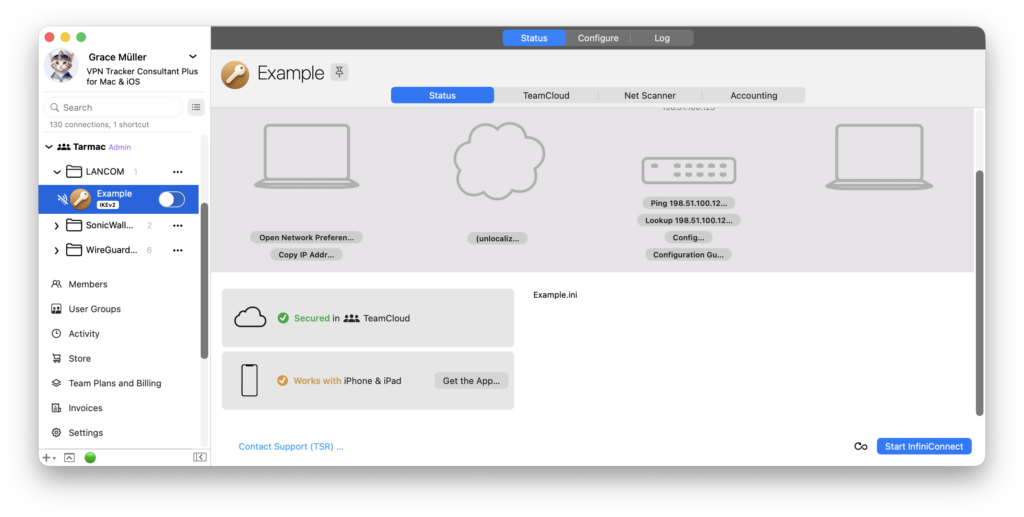
Importing .ini files on the web or for iOS
The VPN Tracker importer for LANCOM .ini files also works seamlessly outside of VPN Tracker for Mac. To connect in your browser, click here to open the VPN Tracker connection creator and upload your .ini configuration file:
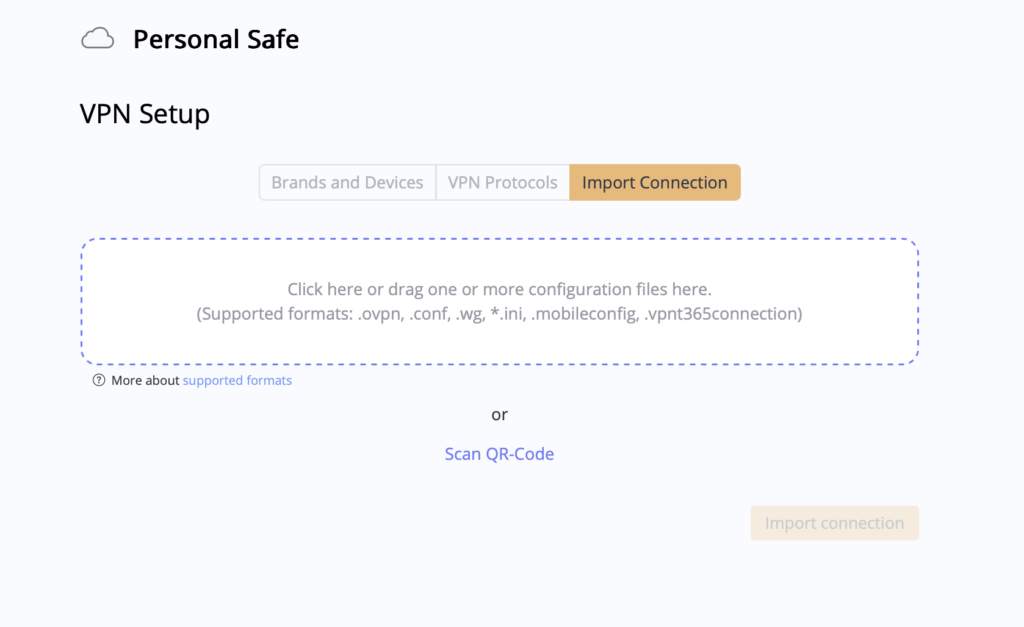
Upload an .ini configuration file in your browser
Or, on your iPhone or iPad, download VPN Tracker for iOS, click the + to create a new connection, and switch to the Import Connection tab:
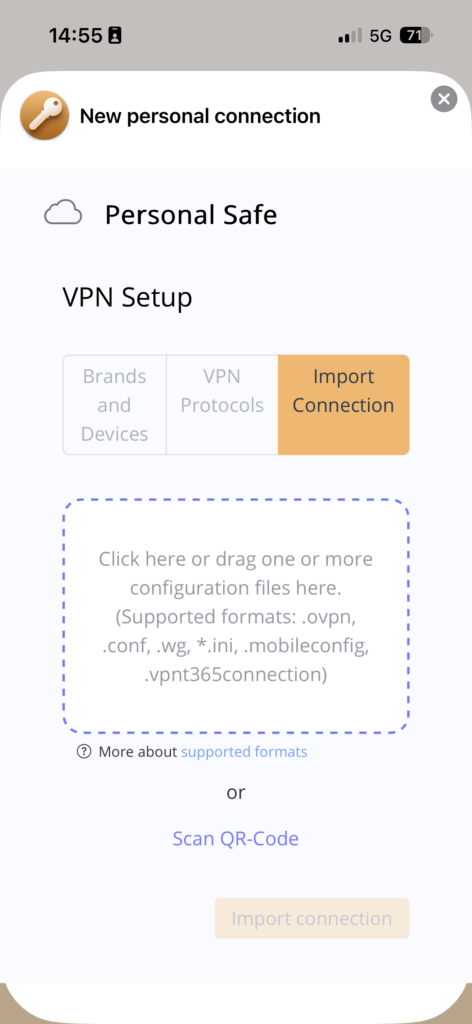
Import .ini files in VPN Tracker for iPhone and iPad
Then, click Import to securely save your new LANCOM IKEv2 connection in your account.
Manual IKEV2 configuration for LANCOM
If your LANCOM device doesn't have support for .ini file export, you can also configure your connection manually in VPN Tracker, using one of the existing LANCOM device profiles.
How it works:
- In VPN Tracker, go to File > New Vendor Connection > LANCOM, or click to open the LANCOM Connection Creator in your browser
- Find your device, for example the 1900 Series, and select IKEv2
Existing IKEv1 connections remain available for legacy compatibility. Do not select IKEv2 unless the LANCOM gateway has also been configured for IKEv2; see the legacy IKEv1 guidance above.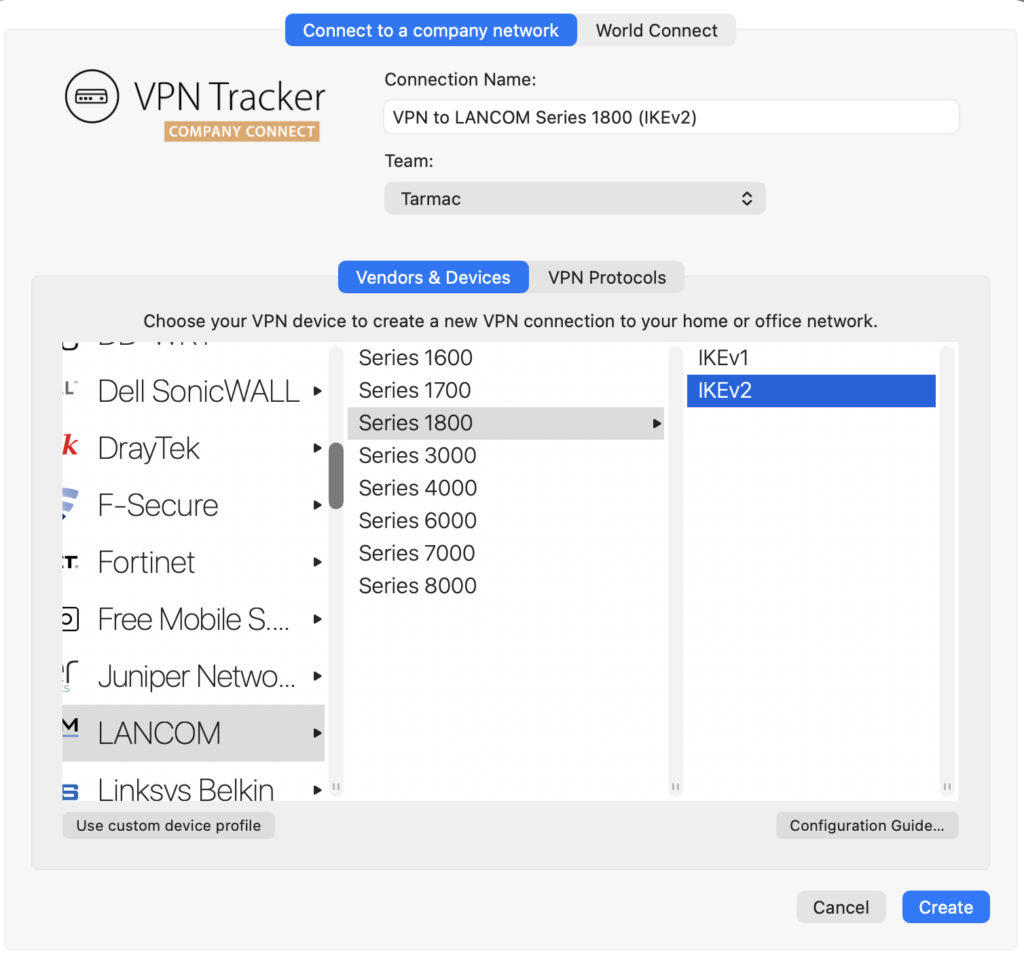
Create a new LANCOM IKEv2 VPN connection
- Next, you'll see the setup view for your LANCOM IKEv2 connection:
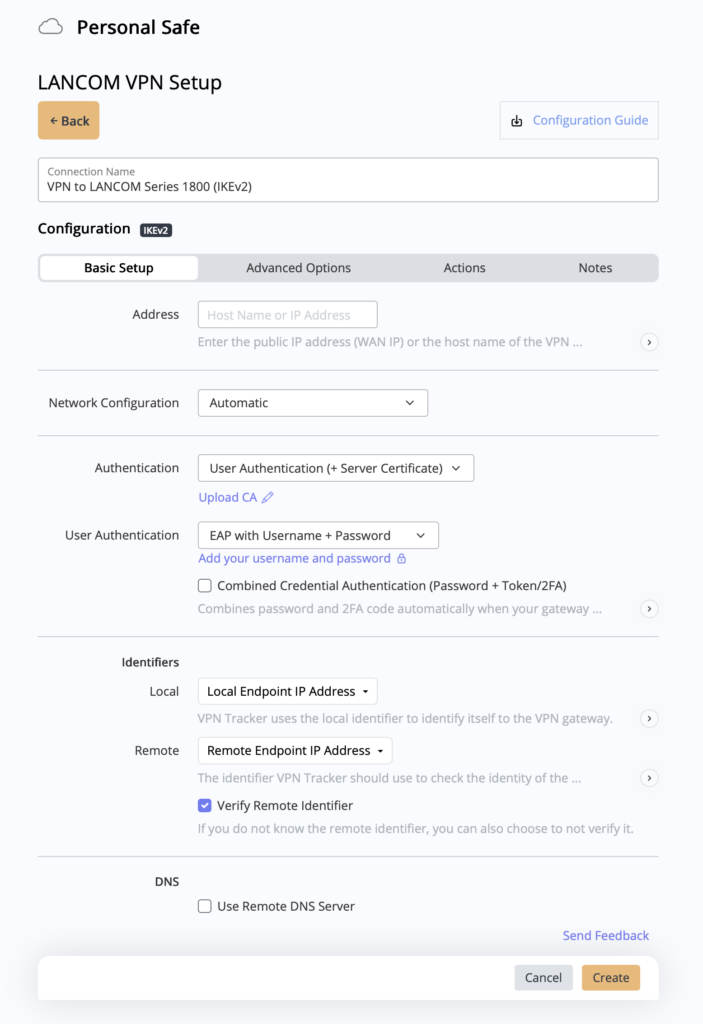
Manual connection settings for LANCOM IKEv2
Give your connection a name, and fill in the fields to accurately match the exact settings you have on your LANCOM gateway. Any deviation from the original gateway settings can cause issues when you try to connect in VPN Tracker!
- Finally, click on Create to save your connection in your VPN Tracker account and connect on Mac, iPhone and iPad
Share a LANCOM IKEv2 VPN Connection with Your Team
Assuming you've already set up a VPN Tracker team, it's now really straightforward to roll out your new LANCOM IKEv2 connection and provide your team members with secure remote access.
Find your connection in the app sidebar, go to Configure and switch to the Access tab. Here you can choose to grant access to all team members, or set up specific user groups:
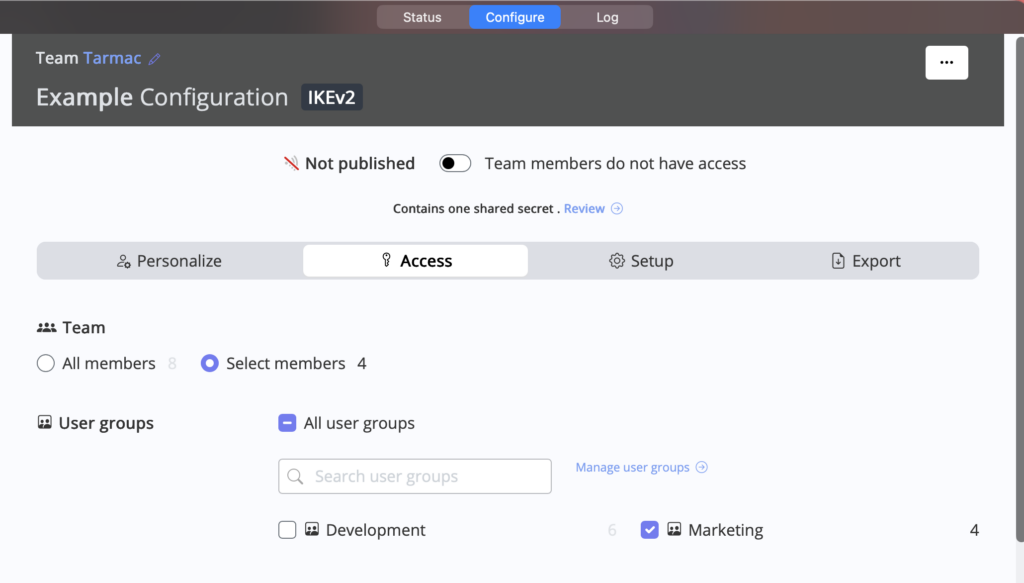
Choose who should have access to your new LANCOM IKEv2 VPN connection
When you're happy, just click the Published slider to make the new connection visible to the selected users:
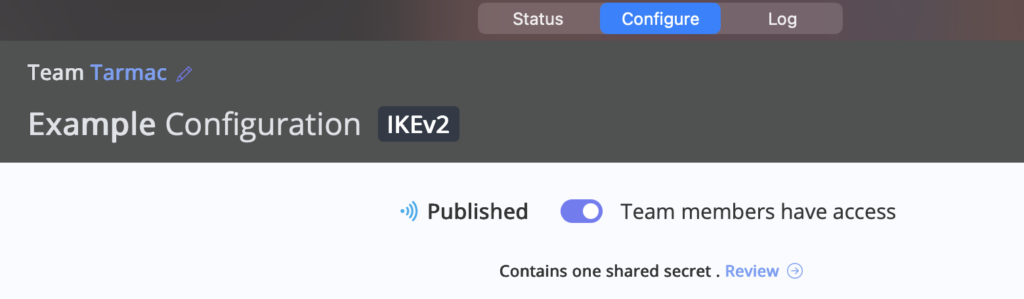
Publish the connection to share with your team
Why VPN Tracker?
VPN Tracker is the best secure remote access solution for Mac, iPhone and iPad and is compatible with the most popular VPN gateways, including LANCOM, Fortinet, Cisco, SonicWall, and many more.
Your VPN Tracker benefits
- Securely connect with your home and office networks
- Use your own gateway
-
Preconfigured profiles for 300+ VPN devices
- Expert productivity features for teams
- For Mac, iPhone, iPad
- Explore all features